How to Make WiFi Faster at Home: 12 Easy Fixes for 2026
Is your home internet slow or unreliable? Try these 12 practical ways to improve Wi-Fi speed, reduce buffering, and get a stronger connection in 2026.
A slow Wi-Fi connection can turn everyday online activities into a frustrating experience. Movies keep buffering, web pages take too long to load, video calls become unstable, and online games start lagging at the worst possible moment.
However, slow Wi-Fi does not always mean you need a more expensive internet plan. The actual problem may be your router’s location, wireless interference, outdated hardware, an overcrowded channel, or too many devices using the network simultaneously.
In this guide, you will learn how to make WiFi faster at home with 12 simple and practical solutions. Begin with the free fixes before buying new equipment. Sometimes, moving your router or changing one wireless setting is enough to produce a noticeable improvement.
Test Your Internet Speed Before Troubleshooting
Start by checking your current internet performance. Run a speed test while standing near the router, and then repeat it in the rooms where the Wi-Fi connection is weak or unreliable.
Pay attention to these three measurements:
- Download speed: Determines how quickly websites, videos, apps, and files load.
- Upload speed: Affects video calls, cloud backups, livestreaming, and file uploads.
- Ping or latency: Measures how quickly the connection responds. Lower latency is better for gaming and real-time communication.
For a more useful comparison, connect a computer directly to the router with an internet cable and run the test again.
If the wired connection performs well but Wi-Fi remains slow, the wireless setup is probably causing the problem. If both wired and wireless results are much lower than expected, the issue could involve your modem, internet line, router, or service provider.
Remember that providers often advertise speeds using the phrase “up to.” Your actual results can vary based on network congestion, equipment limitations, test-server location, and the number of active users.
1. Find a Better Location for Your Router
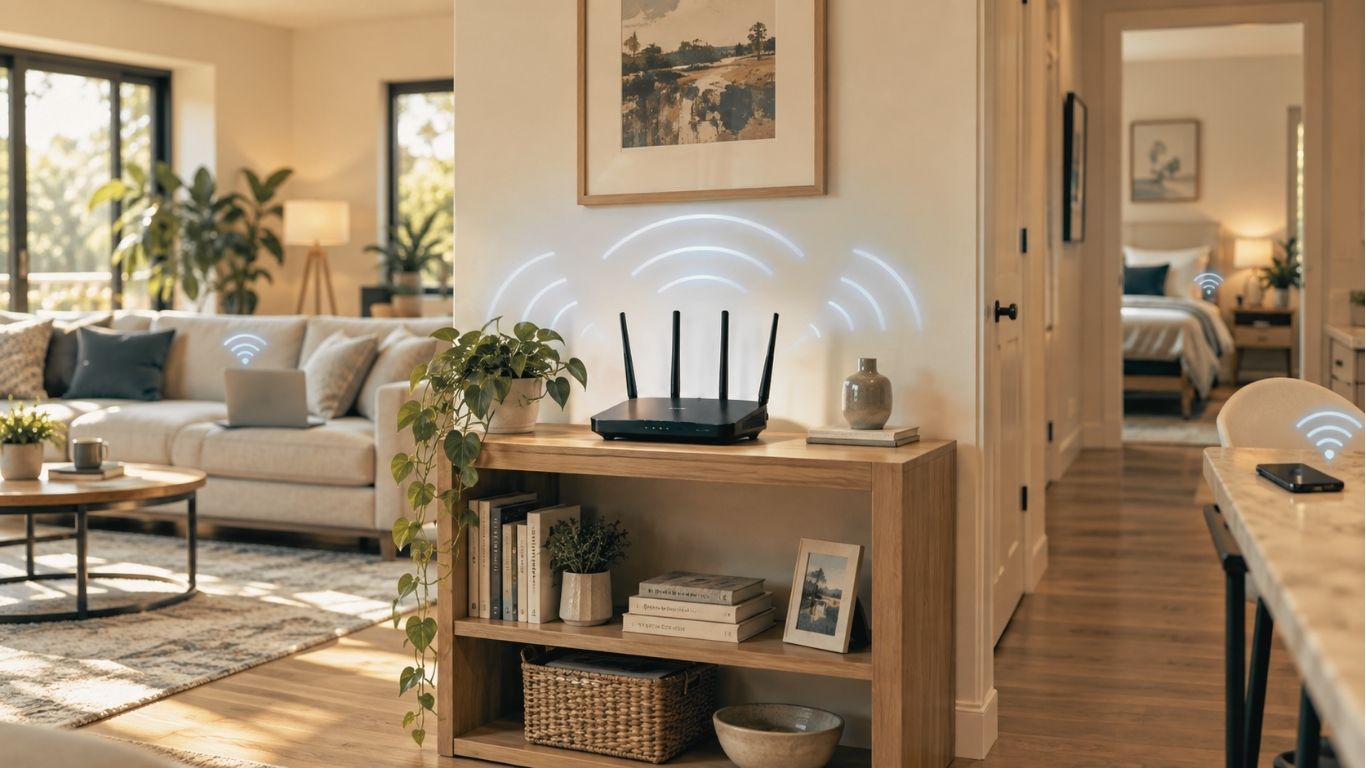
Your router’s position can have a major effect on signal strength and connection speed. Wi-Fi signals lose power when they travel through walls, floors, furniture, and other physical barriers.
Place the router in a central area of your home whenever possible. Keep it elevated on a desk, table, or open shelf rather than placing it on the floor or hiding it inside a cabinet.
Avoid positioning the router near:
- Thick concrete or brick walls
- Large metal appliances or cabinets
- Microwave ovens
- Cordless phone bases
- Baby monitors
- Large mirrors
- Aquariums
- Areas containing many Bluetooth devices
Do not place the router at one extreme end of the house if most devices are used at the opposite end. A central position allows the signal to spread more evenly.
If the router has adjustable antennas, consult its manual for the recommended arrangement. Depending on the design, using different antenna angles may improve coverage across multiple floors.
After moving the router, test the connection in several rooms. A change of only a few feet may provide a stronger and more reliable signal.
** GL.iNet GL-MT6000 Flint 2 Review: Wi-Fi 6 Gaming Router with Dual 2.5G Ports.
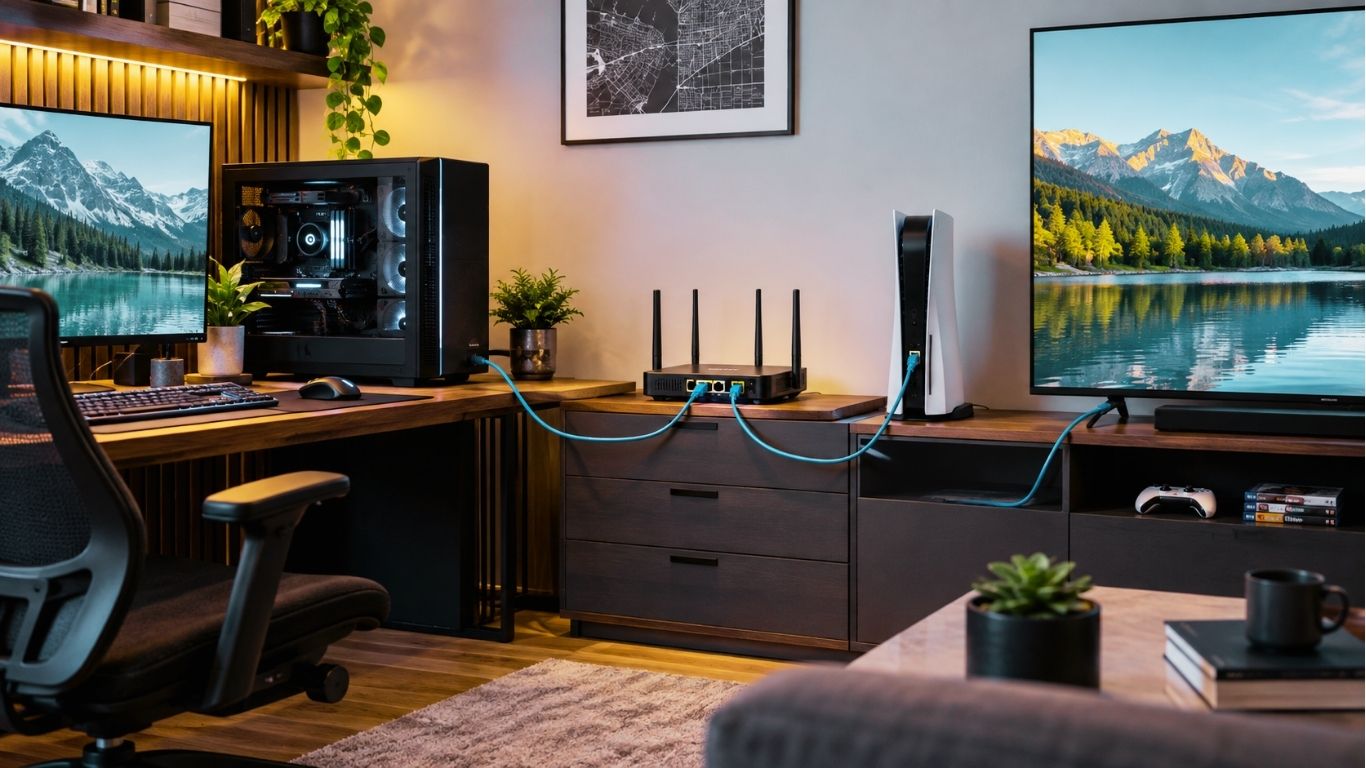
2. Connect High-Demand Devices With Internet
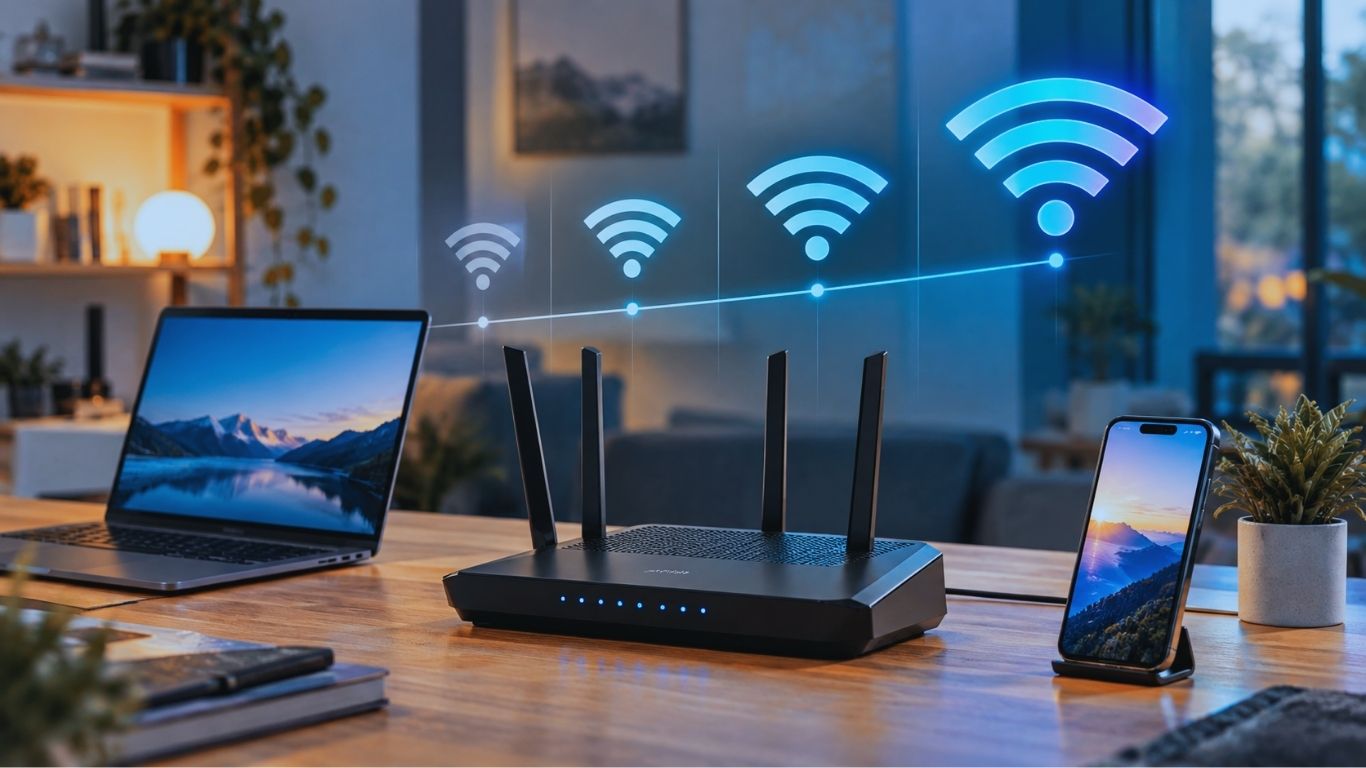
Wi-Fi is convenient, but a wired Internet connection usually offers greater stability and lower latency. It is also less vulnerable to interference from nearby wireless networks and household devices.
Consider using Internet for equipment that stays in one place, including:
- Desktop computers
- Gaming PCs and consoles
- Smart televisions
- Streaming devices
- Network storage systems
- Home-office computers
Connecting these devices by cable can improve their performance while reducing traffic on the wireless network. Your phones, tablets, and smart-home products will then have less competition for Wi-Fi capacity.
A Cat5e Internet cable is normally suitable for Gigabit connections over typical home distances. Cat6 can be a sensible choice when building a faster local network or preparing for future upgrades.
If your laptop lacks an Internet port, a compatible USB-to-Internet adapter can provide a wired connection.
3. Choose the Right Wi-Fi Band and Channel
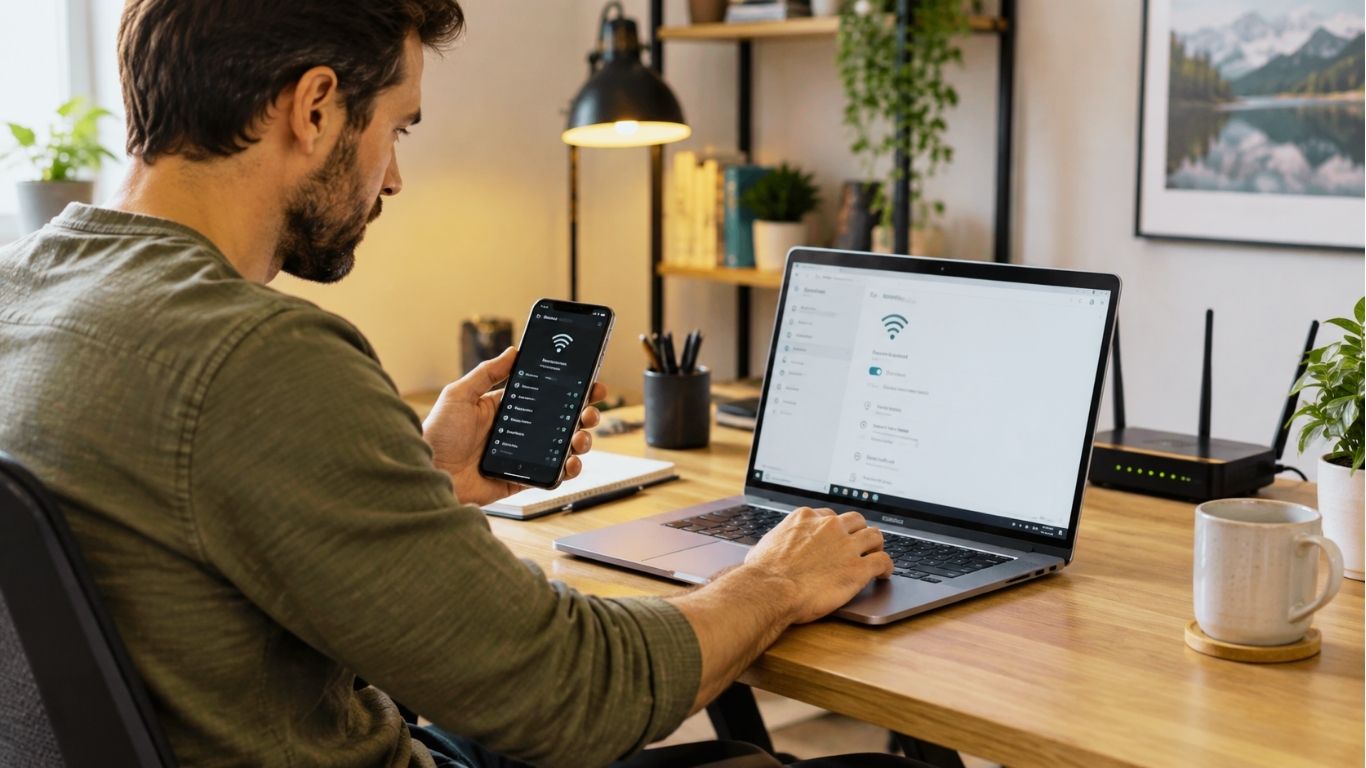
Wireless networks operate across different frequency bands. Each band has its own advantages, and choosing the right one may improve your home Wi-Fi performance.
2.4 GHz
The 2.4 GHz band provides longer range and can pass through walls more effectively. Its main disadvantage is congestion. Routers, Bluetooth devices, smart-home products, and other household equipment frequently share this frequency.
Use 2.4 GHz for devices located farther from the router or products that do not require extremely high speeds.
5 GHz
The 5 GHz band generally provides faster performance and experiences less interference. However, its signal does not travel as far as 2.4 GHz and may weaken more quickly through walls.
It is a good choice for streaming, gaming, video meetings, and large downloads when the device is relatively close to the router.
6 GHz
The 6 GHz band is available on compatible Wi-Fi 6E and Wi-Fi 7 equipment. It provides additional wireless spectrum, which can reduce congestion and support strong performance at shorter distances.
Both the router and connected device must support 6 GHz. Its range may also be more limited than the lower-frequency bands.
Nearby networks can compete for the same channels, especially in apartment buildings. Although many routers select channels automatically, the automatic choice may not always be ideal.
For 2.4 GHz networks in the United States, channels 1, 6, and 11 are commonly used because they do not overlap. Channel availability differs by country, so always use settings permitted in your region.
*** Best Gaming Router Under $200 USA: GL.iNet Flint 3e Wi-Fi 7 Review
4. Upgrade Your Router When Necessary
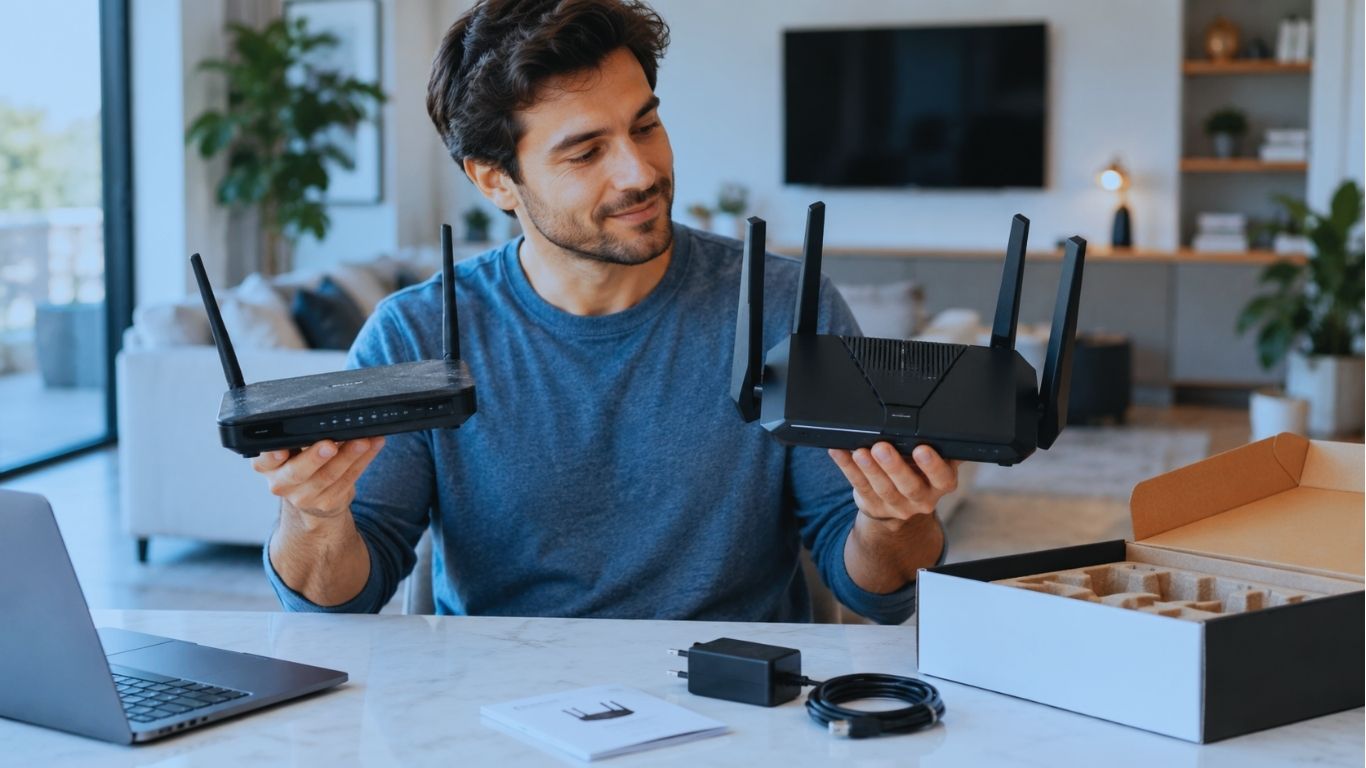
An outdated router can limit the performance of an otherwise fast internet connection. Older equipment may also struggle to manage numerous phones, computers, security cameras, televisions, and smart devices at the same time.
It may be time for an upgrade if your router:
- Frequently disconnects
- No longer receives security updates
- Has slow Ethernet or WAN ports
- Overheats during normal use
- Supports only an older Wi-Fi standard
- Becomes unstable when several devices connect
Modern options include Wi-Fi 6, Wi-Fi 6E, and Wi-Fi 7. These newer generations can provide better efficiency, capacity, responsiveness, and performance in busy households.
Wi-Fi 6E adds access to the 6 GHz band, while Wi-Fi 7 includes technologies designed to improve wireless throughput and reliability. However, your phone or computer must support the corresponding technology to receive its full benefits.
Before purchasing a router, consider:
- The size and construction of your home
- The number of connected devices
- Your internet plan’s maximum speed
- Whether you need a mesh network
- Ethernet and WAN port speeds
- Firmware-update and security support
Avoid choosing a router based only on the largest number displayed on the box. Advertised wireless figures are usually theoretical combined rates, not the guaranteed speed of one device.
*** The Best Gaming Routers For 2026
5. Understand the Different Wi-Fi Generations
Terms such as Wi-Fi 5, Wi-Fi 6, Wi-Fi 6E, and Wi-Fi 7 can be confusing. Here is what they mean in simple language:
- Wi-Fi 5: Based on 802.11ac and mainly operates on the 5 GHz band.
- Wi-Fi 6: Based on 802.11ax and operates across 2.4 GHz and 5 GHz.
- Wi-Fi 6E: Brings Wi-Fi 6 capabilities to the additional 6 GHz band.
- Wi-Fi 7: A newer generation designed to deliver higher throughput, lower latency, and more efficient wireless connections.
A new router cannot add modern Wi-Fi features to an old phone or laptop. For example, a Wi-Fi 5 phone can usually connect to a Wi-Fi 7 router, but the connection will still be limited by the phone’s supported technology.
A good Wi-Fi 6 router remains suitable for many households. Wi-Fi 6E or Wi-Fi 7 may be worthwhile if you own compatible devices, have a multi-gigabit internet plan, transfer large files across your home network, or want newer equipment for long-term use.
6. Consider the Limitations of Wi-Fi Extenders
A Wi-Fi extender can improve coverage in a small dead zone, but it does not always make the internet faster.
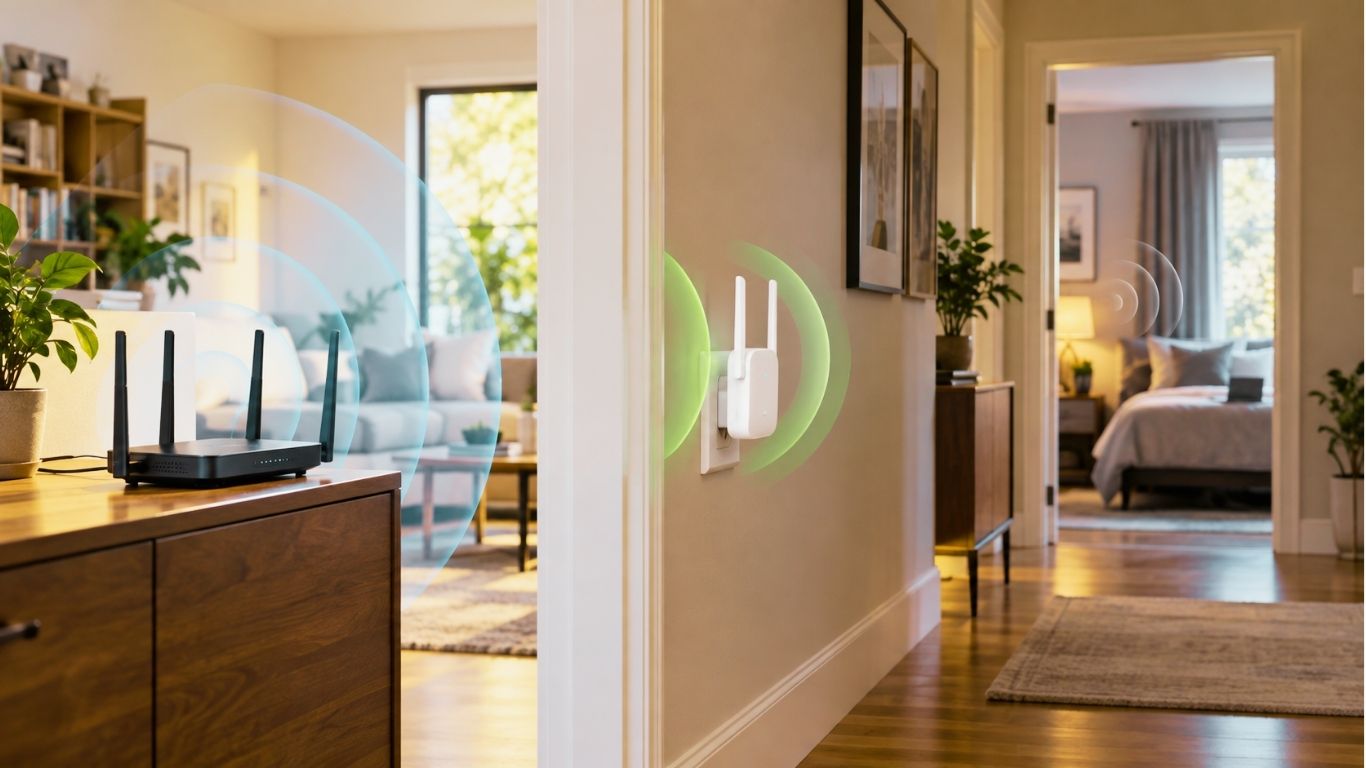
Many extenders receive the router’s wireless signal and broadcast it again. Depending on the model and network design, this process may reduce real-world speed. Some products also create a separate network name, making it less convenient to move around the home.
An extender must receive a strong original signal to work effectively. Placing one directly inside a dead zone may only result in it repeating a weak and unstable connection.
Install the extender between the main router and the problem area. This allows it to maintain a reliable link with the router while extending coverage.
A mesh Wi-Fi system may be a better solution for a large or multi-story home. Mesh systems use multiple coordinated access points to create broader, more consistent coverage. If supported, connecting mesh units with Ethernet backhaul can further improve performance.
A basic extender may still be useful for one room, a garage, or a low-bandwidth device. Just do not expect it to perform like a wired access point.
7. Try Powerline Networking
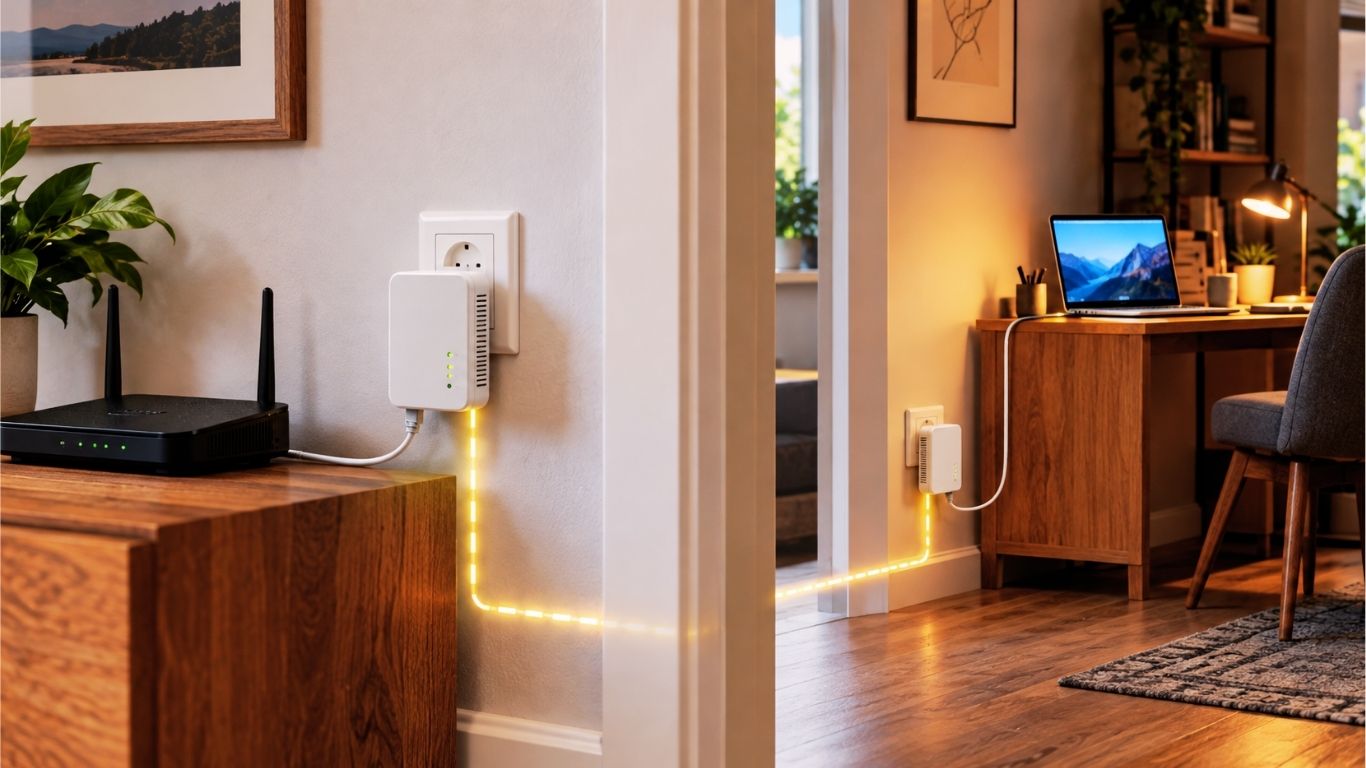
Powerline adapters use a home’s electrical wiring to carry network data between rooms. One adapter connects to the router, while another is placed near the room or device requiring a better connection.
Some powerline kits provide only an internet port. Others can also create an additional Wi-Fi access point.
This technology may help when installing a long internet cable is difficult and the router’s wireless signal cannot reliably reach a distant room.
However, results vary significantly between properties. Performance can be affected by the age of the electrical wiring, circuit layout, distance, and interference from appliances.
For the best results:
- Plug adapters directly into wall outlets.
- Avoid surge protectors and extension leads unless the manufacturer permits them.
- Use adapters designed to work together.
- Try different outlets if the connection is unstable.
- Purchase from a seller with a reasonable return policy.
Powerline networking will not outperform Wi-Fi in every home. In a suitable electrical environment, however, it can provide a more stable connection to difficult locations.
8. Use a Secure Wi-Fi Password
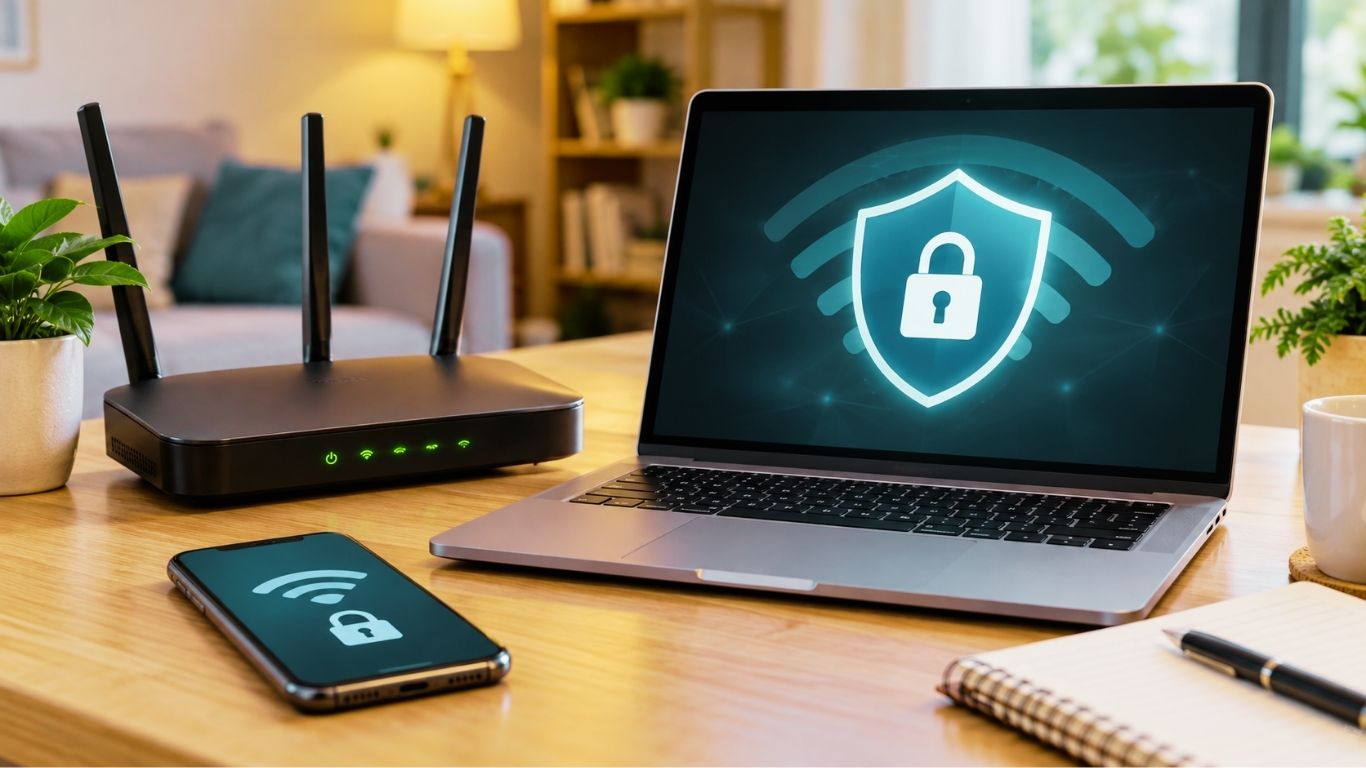
A strong password does not directly increase the strength of your Wi-Fi signal. It can, however, prevent unauthorized users from connecting and using your available bandwidth.
Use WPA3-Personal security when all important devices support it. Otherwise, choose WPA2-Personal with AES. The Federal Trade Commission recommends WPA3 Personal or WPA2 Personal for securing home Wi-Fi networks.
Create a long and unique password that you do not use for another account. You should also replace the router’s default administrator password, as this password protects access to the network settings.
Avoid old security methods such as WEP. Install official firmware updates and disable features such as remote administration or WPS when you do not need them.
You can also create a guest network for visitors. This keeps their devices separate from the computers and storage systems connected to your main network.
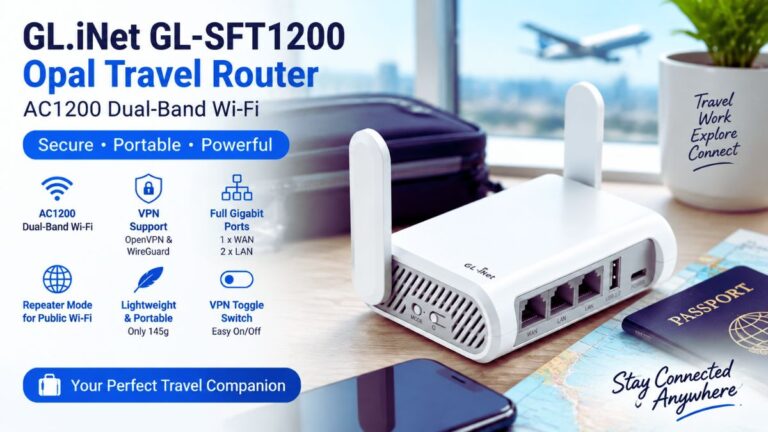
GL.iNet GL-SFT1200 Opal Travel Router Review: AC1200
9. Identify Devices Using Too Much Bandwidth
Phones and computers are not the only devices using your internet. Modern homes may also contain connected televisions, cameras, speakers, lights, watches, consoles, plugs, and appliances.
A device may appear inactive while still using bandwidth for:
- Software and game updates
- Cloud backups
- Security-camera uploads
- Photo synchronization
- Automatic downloads
- Music or video streaming
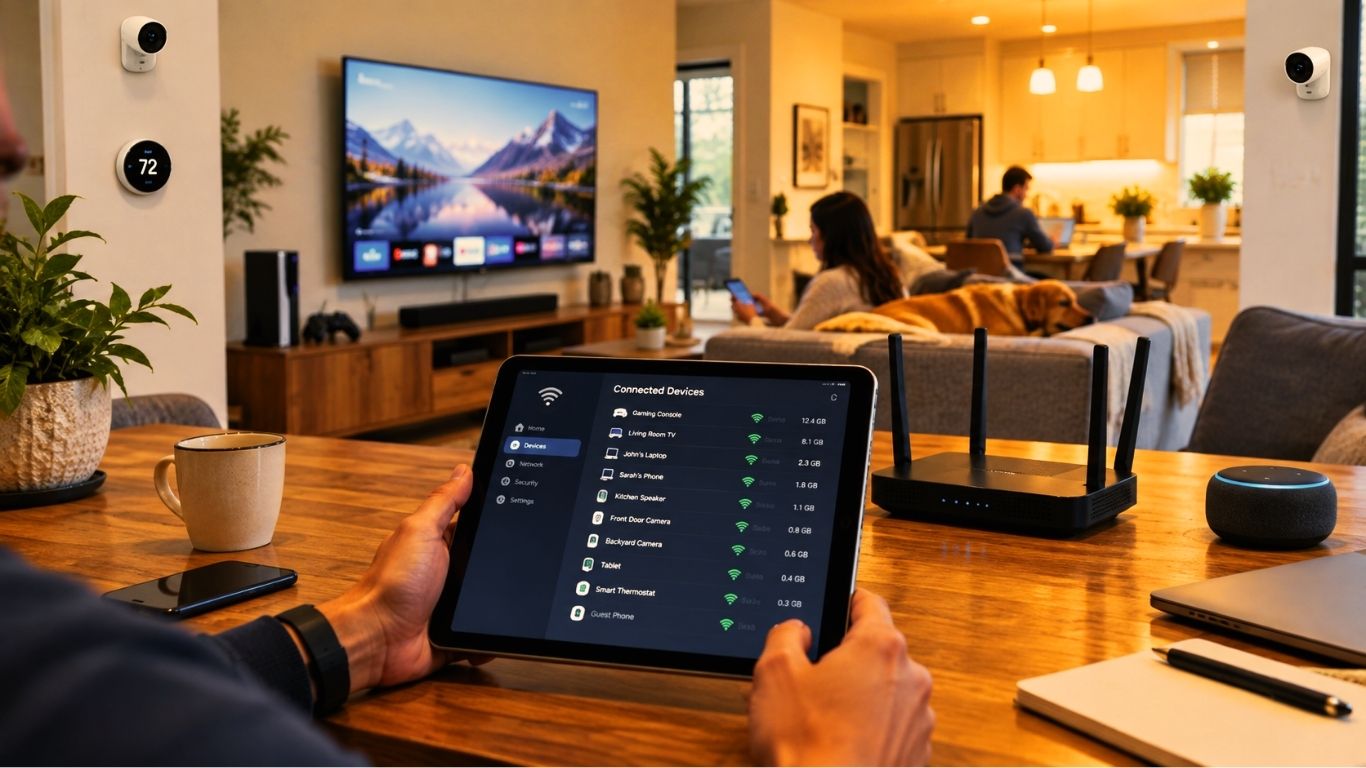
Open your router’s management app and review its connected-device list. Disconnect equipment you no longer use and remove any device you do not recognize.
Some routers include Quality of Service, also known as QoS or device prioritization. This feature lets you prioritize important traffic, such as a work video call, streaming device, or gaming system.
QoS does not increase your total internet speed. It organizes the available bandwidth so that important activities are less likely to suffer when the network is busy.
10. Troubleshoot Your Computer or Phone
If the internet is slow on only one device, the router may not be responsible. The affected phone or computer could have a software problem, an old wireless driver, or a background process using the connection.
Try these steps:
- Restart the device.
- Install available system updates.
- Update the Wi-Fi adapter driver.
- Pause cloud backups and large downloads.
- Close unnecessary programs and browser tabs.
- Temporarily disable your VPN for testing.
- Scan the computer for malware.
- Forget the Wi-Fi network and reconnect.
- Test the connection using another browser.
- Temporarily disable battery-saving mode.
Test another phone or computer from exactly the same location. If the second device performs normally, concentrate on troubleshooting the original device.
Microsoft also recommends testing the network with another device and restarting network equipment as part of its official Wi-Fi troubleshooting process.
An older computer with outdated wireless hardware may benefit from a modern USB Wi-Fi adapter.
11. Restart Your Router the Correct Way
Restarting the router can clear temporary software errors, refresh its connection, and restore normal performance. It is not a permanent cure for every Wi-Fi problem, but it is a useful troubleshooting step.
Follow this order:
- Turn off or unplug both the modem and router.
- Wait between 30 and 60 seconds.
- Turn the modem on first.
- Wait for its internet or connection lights to stabilize.
- Turn on the router.
- Allow several minutes for the Wi-Fi network to return.
Do not confuse a restart with a factory reset. Restarting temporarily turns the equipment off and on. A factory reset erases the Wi-Fi name, password, and other custom settings.
If you need to restart your router regularly, investigate the underlying cause. The router may be overheating, failing, running outdated firmware, or unable to handle the number of connected devices.
Keep the equipment in a well-ventilated location and install firmware updates through the manufacturer’s official app or website.
12. Ask Your Internet Provider for Help
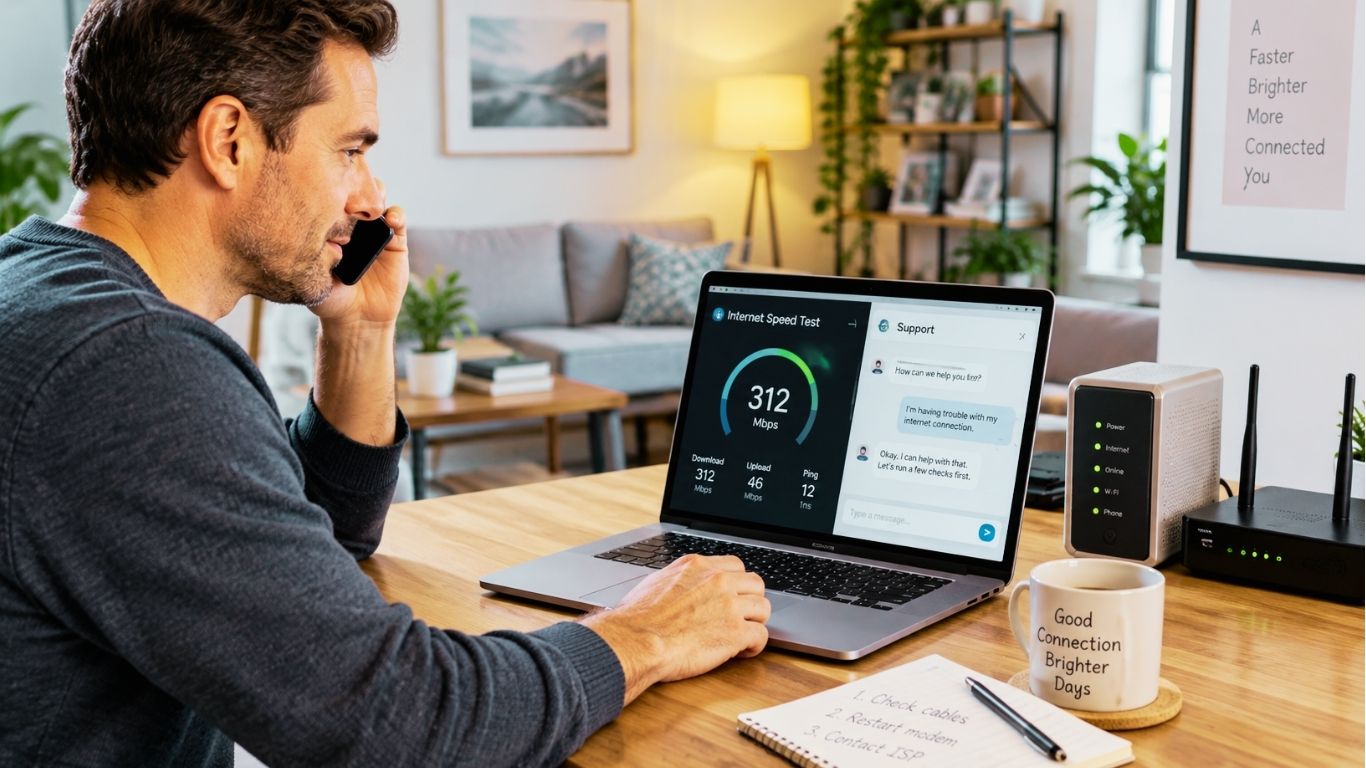
If every device remains slow—including a computer connected through internet—the problem may be outside your Wi-Fi network.
Before contacting your ISP, prepare the following information:
- Results from wired speed tests
- Results from wireless speed tests
- Dates and times of regular slowdowns
- Your plan’s advertised speed
- Details of modem warning lights
- Troubleshooting steps you have completed
Ask the provider to check for local outages, line faults, signal problems, modem issues, and incorrect account provisioning.
If you rent a modem or gateway, ask whether the provider can replace it with a newer model.
You should also determine whether your plan provides enough bandwidth for the household. Several people simultaneously streaming 4K video, playing games, joining video meetings, and backing up files may require more capacity than a household used mainly for web browsing.
The FCC’s broadband consumer guide explains that consumers should consider the number of people and simultaneous activities when estimating their internet-speed requirements.
Upgrade your package only after ruling out Wi-Fi problems. Paying for a faster plan will not fix a badly positioned router or weak wireless coverage.
Quick Checklist to Make Home Wi-Fi Faster
Follow these steps in order:
- Compare wired and wireless speed-test results.
- Restart your modem and router.
- Move the router to an open, central position.
- Connect high-demand devices through internet.
- Try 5 GHz or 6 GHz when close to the router.
- Check for unknown devices and background downloads.
- Update router firmware, device software, and Wi-Fi drivers.
- Test a different wireless channel.
- Consider a mesh network for a large home.
- Contact your ISP if internet is also consistently slow.
Frequently Asked Questions
Why is my Wi-Fi slow when I pay for fast internet?
Your internet plan determines how much bandwidth reaches your home, while the router distributes that connection wirelessly. Weak coverage, interference, old equipment, and device limitations can prevent you from receiving the expected speed over Wi-Fi.
Can restarting a router improve internet speed?
A restart can remove temporary errors and restore normal performance. If the connection slows down repeatedly, outdated firmware, overheating, or failing equipment may be the real cause.
Should I use 2.4 GHz or 5 GHz?
Choose 2.4 GHz for longer range and better wall penetration. Select 5 GHz for higher potential speeds when you are closer to the router. Compatible 6 GHz equipment can provide excellent short-range performance with less congestion.
Will a new router make my Wi-Fi faster?
It may improve speed, coverage, device capacity, and stability if your current router is the bottleneck. A new router cannot make your external internet connection exceed the limits of your ISP package.
Is internet always faster than Wi-Fi?
internet is generally more stable and less affected by interference. Actual performance still depends on your internet plan, router ports, device hardware, and internet cable.
Final Thoughts
Learning how to make WiFi faster at home does not need to be difficult or expensive. Begin by testing your connection, moving the router, selecting the appropriate frequency band, restarting the equipment, and managing connected devices.
Use Ethernet for gaming systems, work computers, smart TVs, and other equipment that requires a stable connection. If a large home has multiple dead zones, a properly designed mesh network may offer better results than several basic extenders.
Contact your ISP when slow performance also affects a wired connection. Test one solution at a time and compare the results. This approach will help you find the real bottleneck and create a faster, more reliable home network for browsing, streaming, gaming, and remote work.