How to Set Up a Travel Router for Beginners: Complete Guide
Setting up a travel router does not have to be complicated. This beginner-friendly 2026 guide explains how to connect a travel router to hotel WiFi, configure security settings, connect multiple devices, and troubleshoot common problems step by step.
How to Set Up a Travel Router for Beginners. Staying connected while traveling sounds simple until you have to connect a phone, laptop, tablet, and streaming device to a hotel network one by one. Add a captive portal, weak signal, or device limit, and the whole process can become frustrating.
A travel router can make things much easier. Instead of connecting every device directly to hotel WiFi, you connect the travel router once and let your personal devices use the private network it creates. This can save time, simplify device management, and give you more control over your connection.
If you are looking for a simple explanation of how to set up a travel router for beginners, this guide walks through the process step by step. It also covers hotel WiFi, internet setup, security tips, common problems, and practical travel advice for 2026.
What Is a Travel Router?
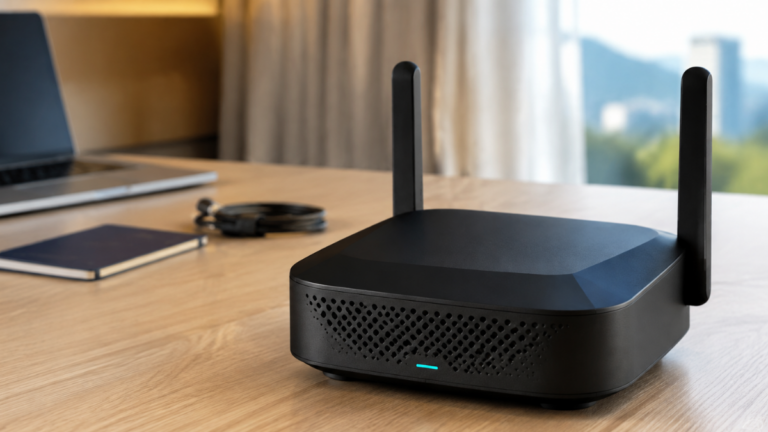
A travel router is a compact WiFi router designed for use away from home.
Unlike a typical home router, which is usually connected to a fixed broadband line, a travel router can connect to an existing internet source such as hotel WiFi, Ethernet, a mobile hotspot, or USB tethering.
It then creates a separate WiFi network for your own devices.
For example, you can connect your travel router to the hotel network and then connect your phone, laptop, tablet, or streaming stick to the router instead of the hotel WiFi directly.
This is especially useful if you travel with several devices or frequently stay in hotels.
Depending on the model, a travel router may support:
- Hotel WiFi repeater mode
- internet connections
- USB tethering
- Mobile hotspot sharing
- VPN connections
- Multiple connected devices
- 2.4GHz and 5GHz WiFi bands
Features vary between models, so it is worth checking your router’s specifications before traveling.
Why Use a Travel Router?
The biggest advantage of a travel router is convenience.
Once your personal devices have saved the travel router’s WiFi name and password, you usually do not need to reconnect each device every time you arrive at a new hotel.
Instead, you connect the router to the new internet source, and your devices can continue using the same private network.
For example, if you travel with a smartphone, laptop, tablet, and streaming device, you can manage them all through one connection.
A travel router may also help with devices that do not handle hotel login pages very well.
Keep in mind, however, that hotel network rules vary. A travel router does not guarantee that you can avoid device limits, authentication requirements, or other restrictions.
What You Need Before You Start
Before setting up your travel router, make sure you have a few basic items ready.
You will normally need:
- A travel router
- A smartphone, tablet, or laptop
- A USB cable or power adapter
- Access to hotel WiFi or another internet source
- The network password, if required
- An Ethernet cable if you plan to use a wired connection
It is also a good idea to keep the router manual nearby.
Most manufacturers include the default WiFi name, password, and admin address either on the device itself or in the setup guide.
4 Best Portable WiFi Routers for USA and UK Travel in 2026
How to Set Up a Travel Router for Beginners
The exact settings can vary by brand, but most travel routers follow a similar setup process.
Here is a simple step-by-step method.
Step 1: Power On the Router
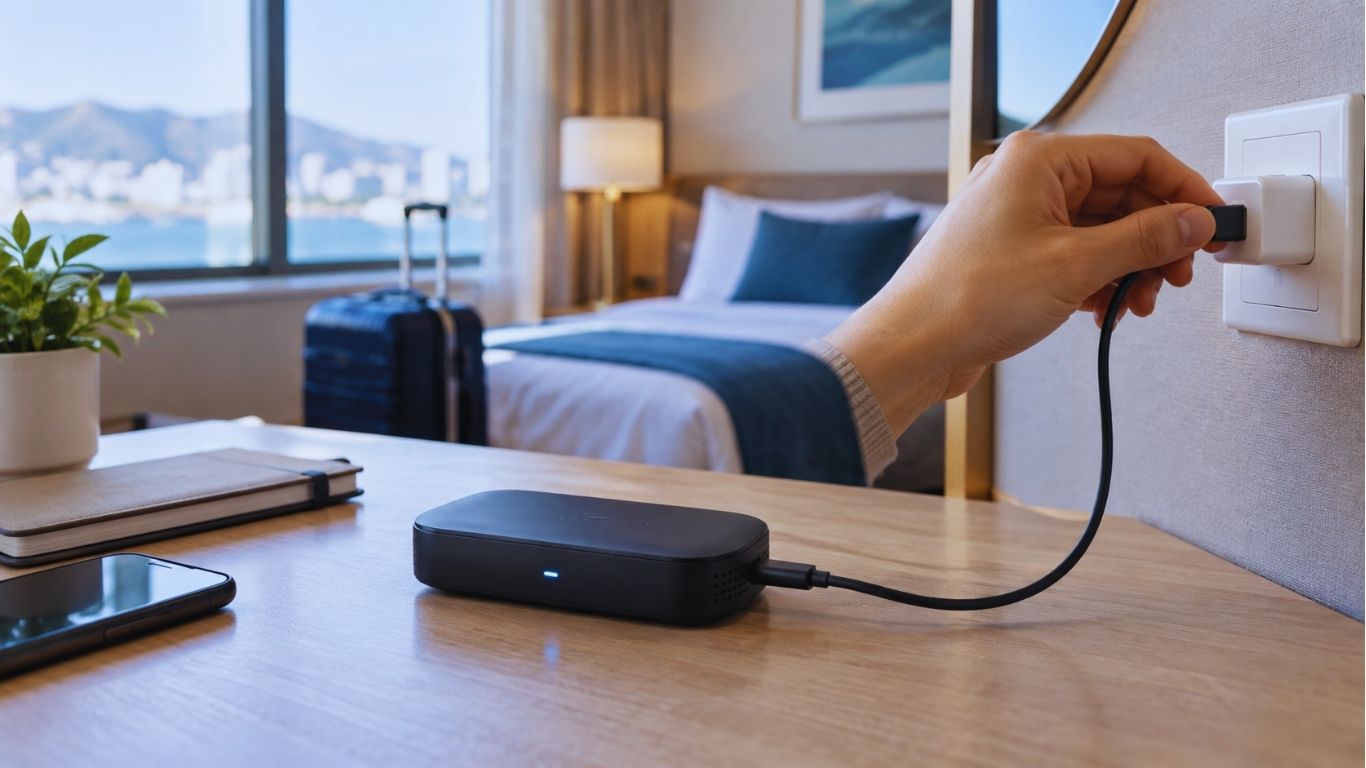
Connect the travel router to a power source.
Many newer models use USB-C, while some older ones use Micro USB or a dedicated adapter.
Turn the router on and give it a minute or two to start.
The indicator lights may flash during startup. Wait until the router is fully powered before moving to the next step.
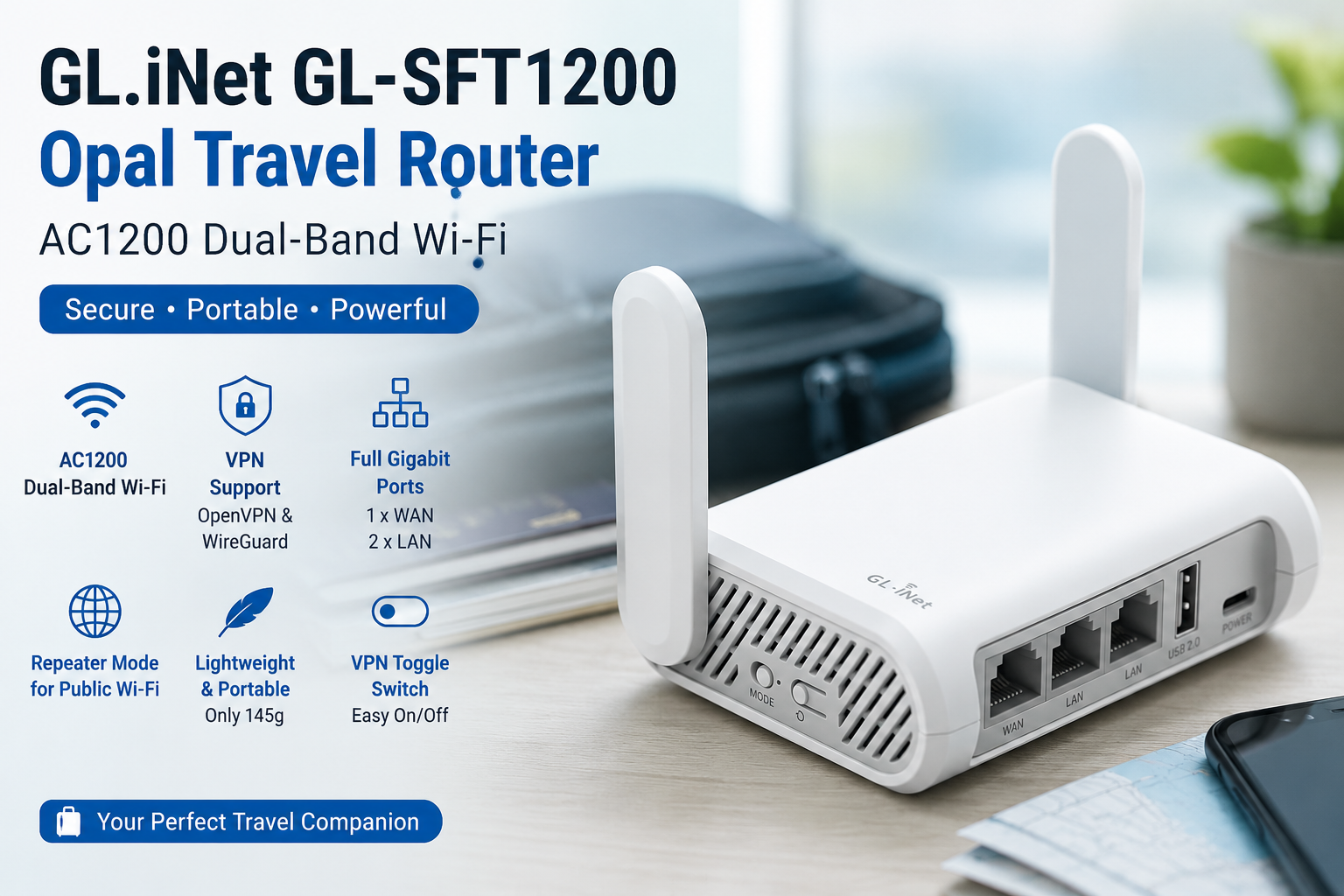
GL.iNet GL-SFT1200 Opal Travel Router Review: AC1200
Step 2: Connect Your Phone or Laptop
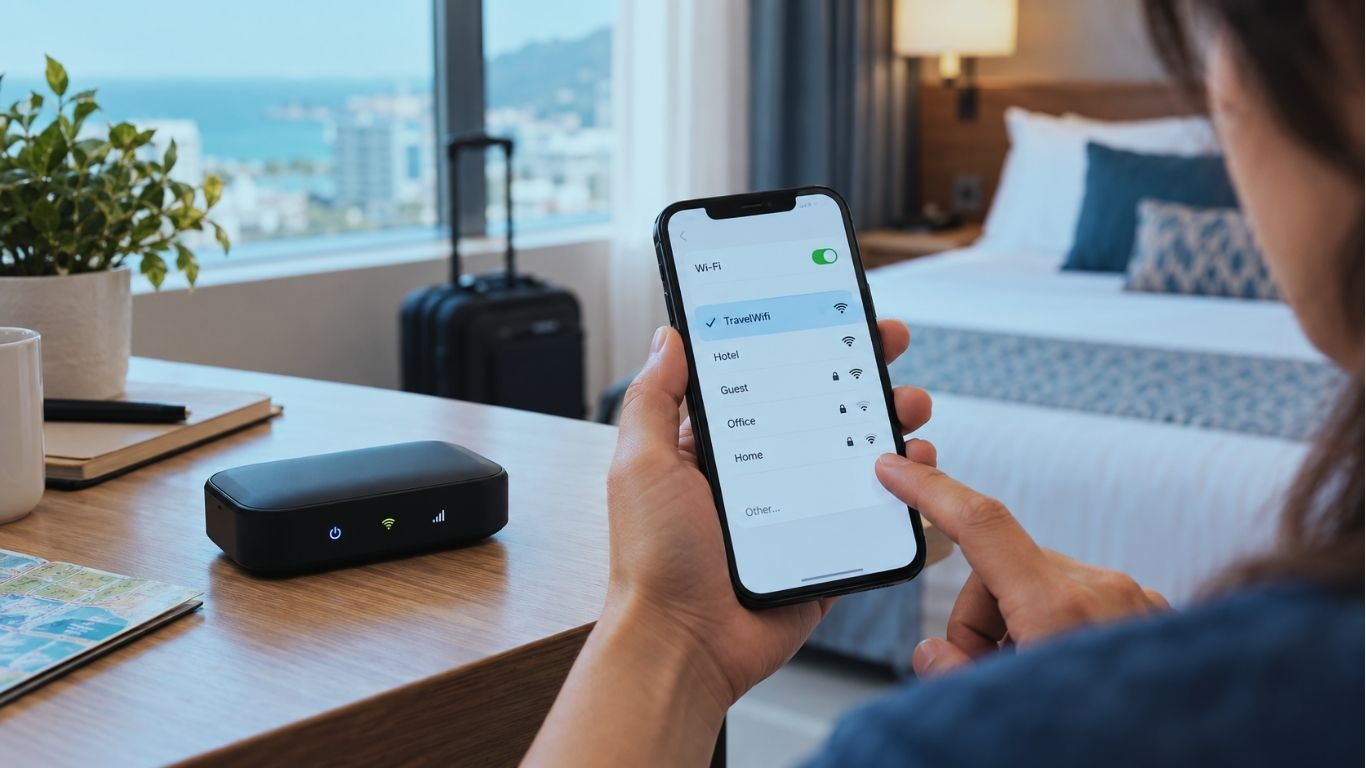
Open the WiFi settings on your phone, tablet, or computer.
Look for the default network created by the travel router.
The network name is often printed on a label underneath the device.
It may look something like:
TravelRouter-XXXX or Router-5G-XXXX
Select the network and enter the default WiFi password.
At this stage, your device may say that there is no internet connection.
That is normal because the router itself has not yet been connected to the internet.
Step 3: Open the Router Admin Page
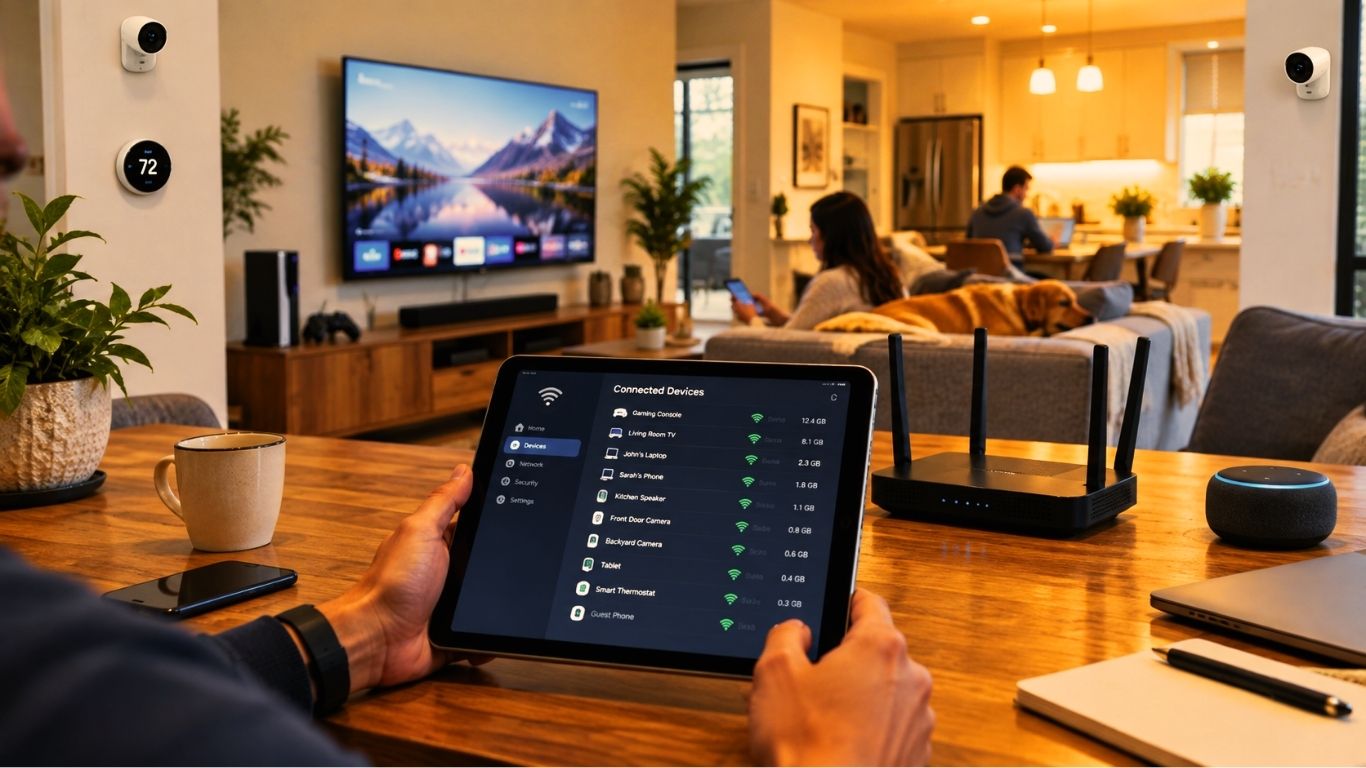
Now open a web browser.
Enter the router’s admin address, which may be a local IP address or a special setup page.
You can usually find it in the manual or on the router label.
During the first setup, you may be asked to create an administrator password.
Use a strong password and make it different from your normal WiFi password.
The admin password controls access to the router settings, so it should be kept private.
Step 4: Choose the Connection Type
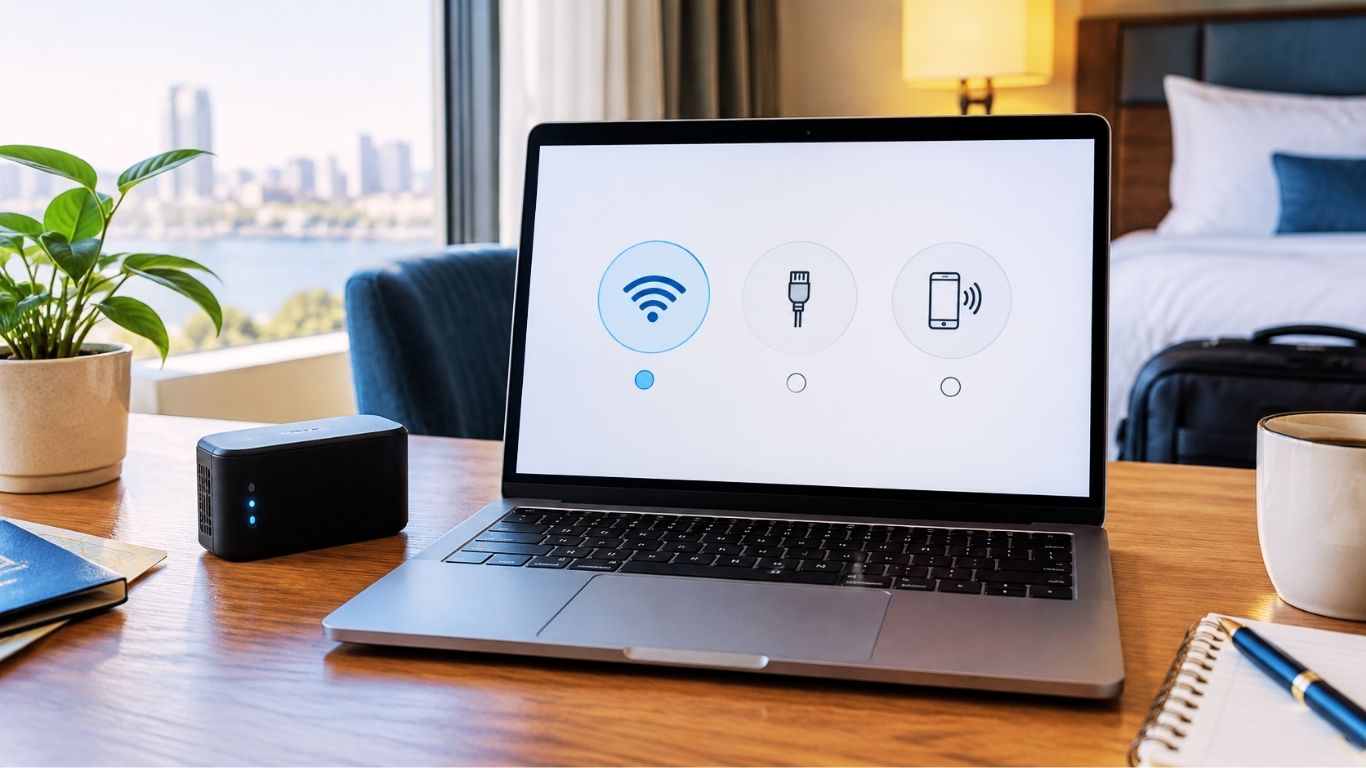
Inside the router settings, look for the section that controls internet access.
Depending on the router, you may see options such as:
- Repeater
- WISP
- Extender
- Wireless WAN
- Hotel WiFi
- internet
- Tethering
If you are connecting to hotel WiFi, you will usually need a wireless repeater, WISP, or similar mode.
The exact name depends on the manufacturer.
Step 5: Connect to Hotel WiFi
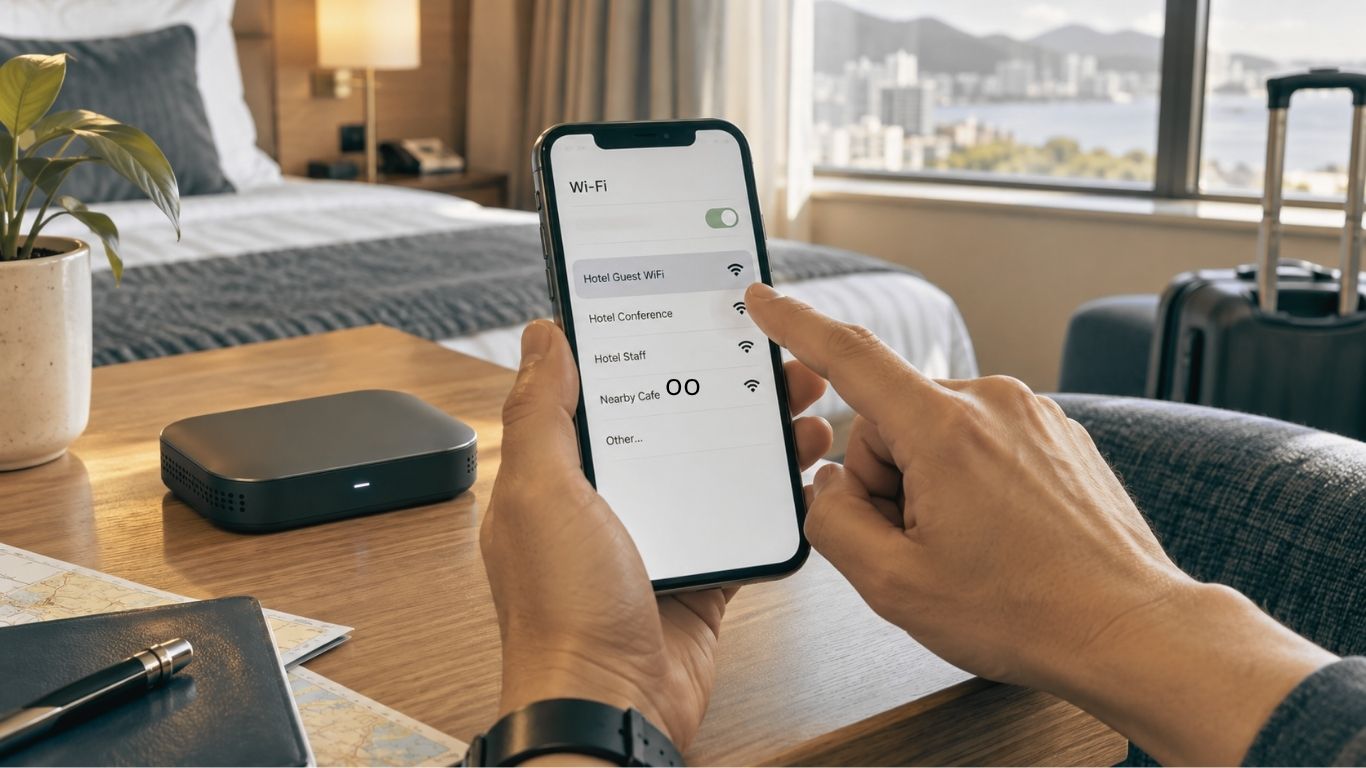
Start a scan for nearby networks.
Choose the hotel’s WiFi network and enter the password if needed.
The router will try to establish a connection.
Once it connects successfully, your phone or laptop should stay connected to the travel router rather than switching directly to the hotel network.
Step 6: Complete the Hotel Login Page
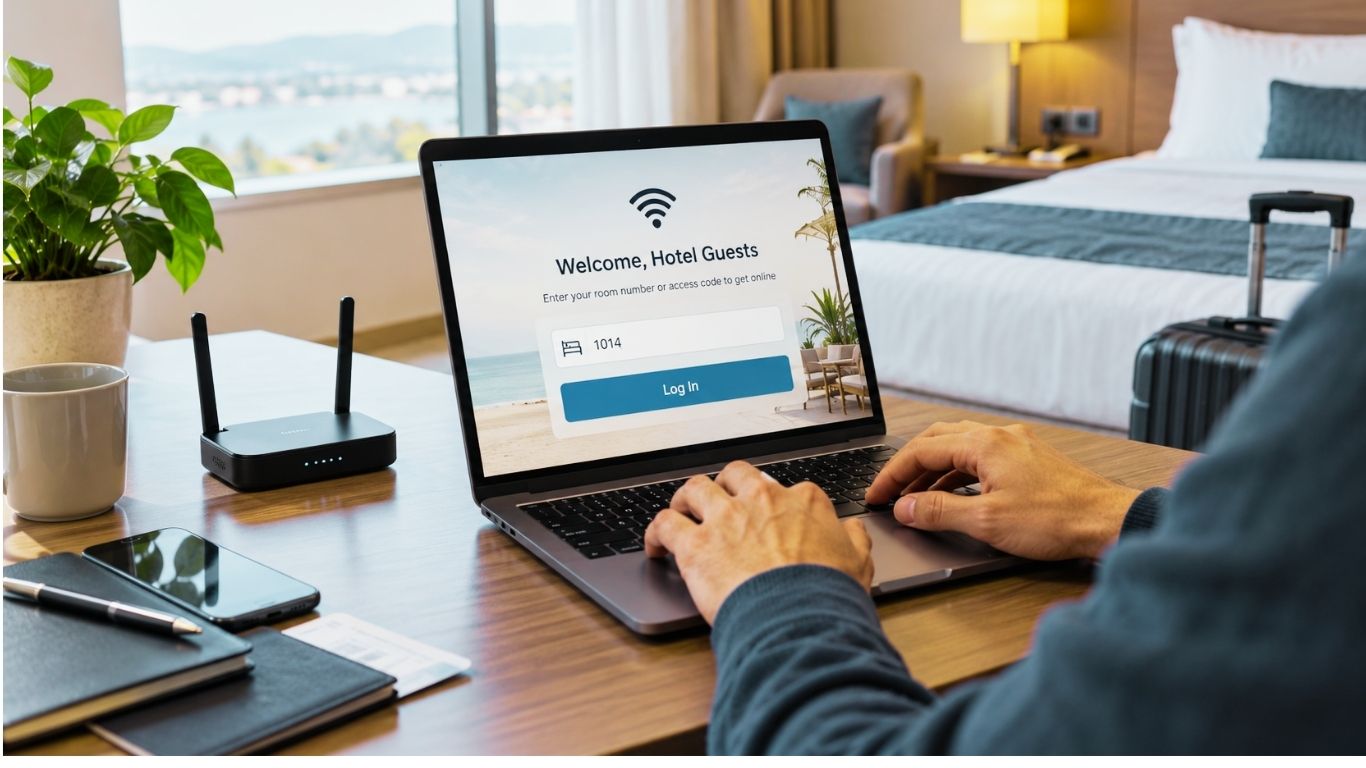
Many hotels use a captive portal.
This is the login page that appears after connecting to the WiFi network.
It may ask for:
- Room number
- Last name
- Email address
- Access code
- Acceptance of terms and conditions
After the router connects to hotel WiFi, open a browser on your phone or laptop and try visiting a website.
The hotel login page may appear automatically.
Complete the required information and submit it.
Once authentication is accepted, the travel router should gain internet access.
If the page does not appear, try reconnecting or opening a non-HTTPS website to trigger the login page.
Step 7: Change the WiFi Name
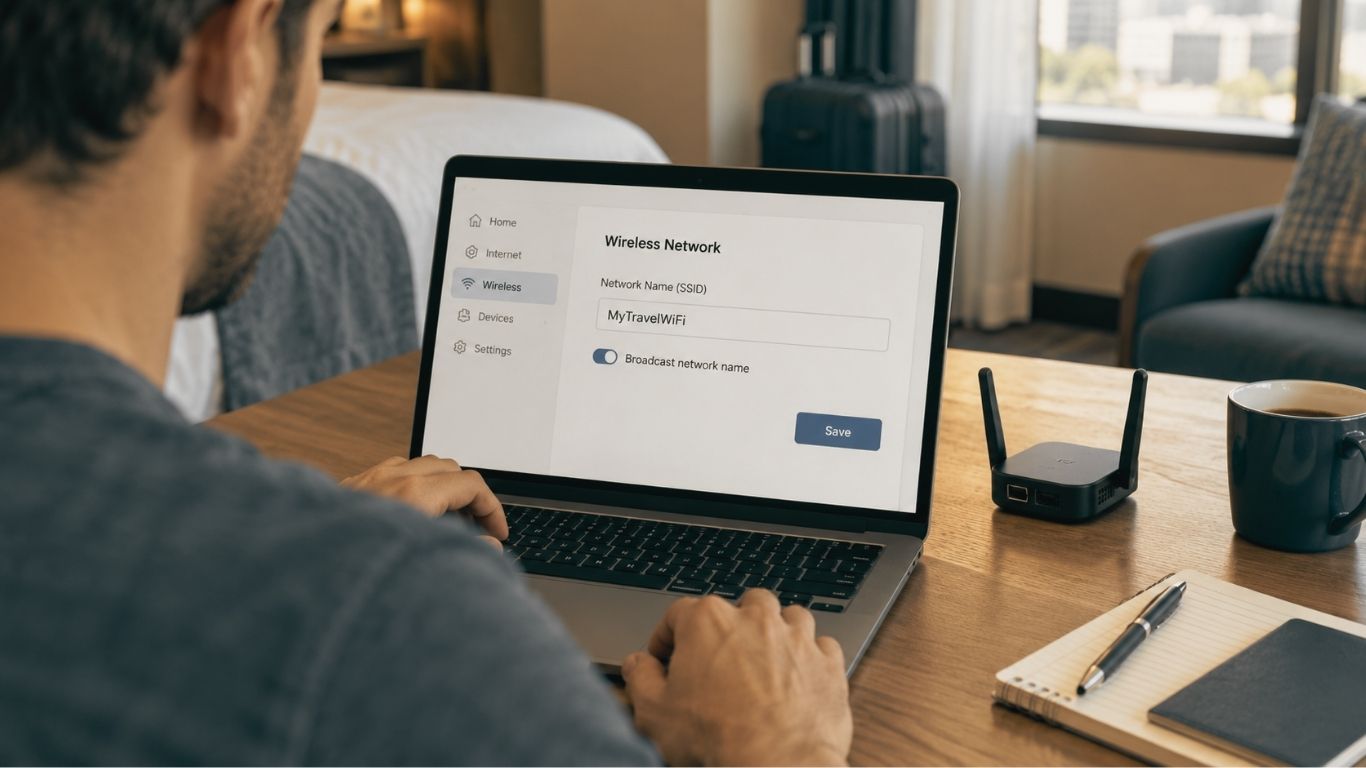
Using the default WiFi name is not ideal.
Open the wireless settings in the router dashboard and find the SSID or network name option.
Choose a name that is easy to recognize.
For example: – MyTravel WiFi
Avoid using personal details such as your full name, phone number, room number, or home address.
Step 8: Create a Strong Password
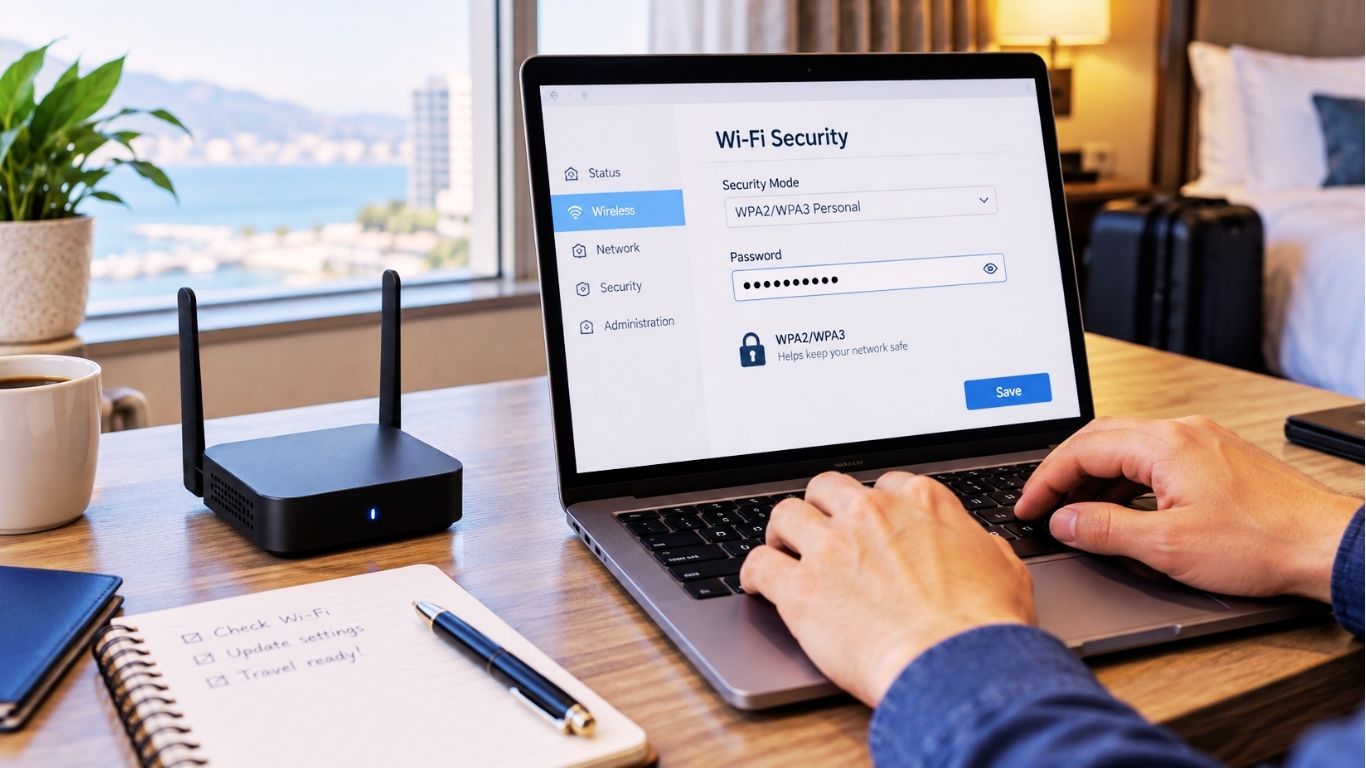
Next, change the default WiFi password.
A good password should be difficult to guess and include a mix of characters.
You can use:
- Uppercase letters
- Lowercase letters
- Numbers
- Symbols
Avoid simple passwords such as:
12345678
password123
hotelwifi
travel2026
After saving the new settings, the router may restart.
If it does, reconnect using the new WiFi name and password.
Step 9: Connect Your Other Devices
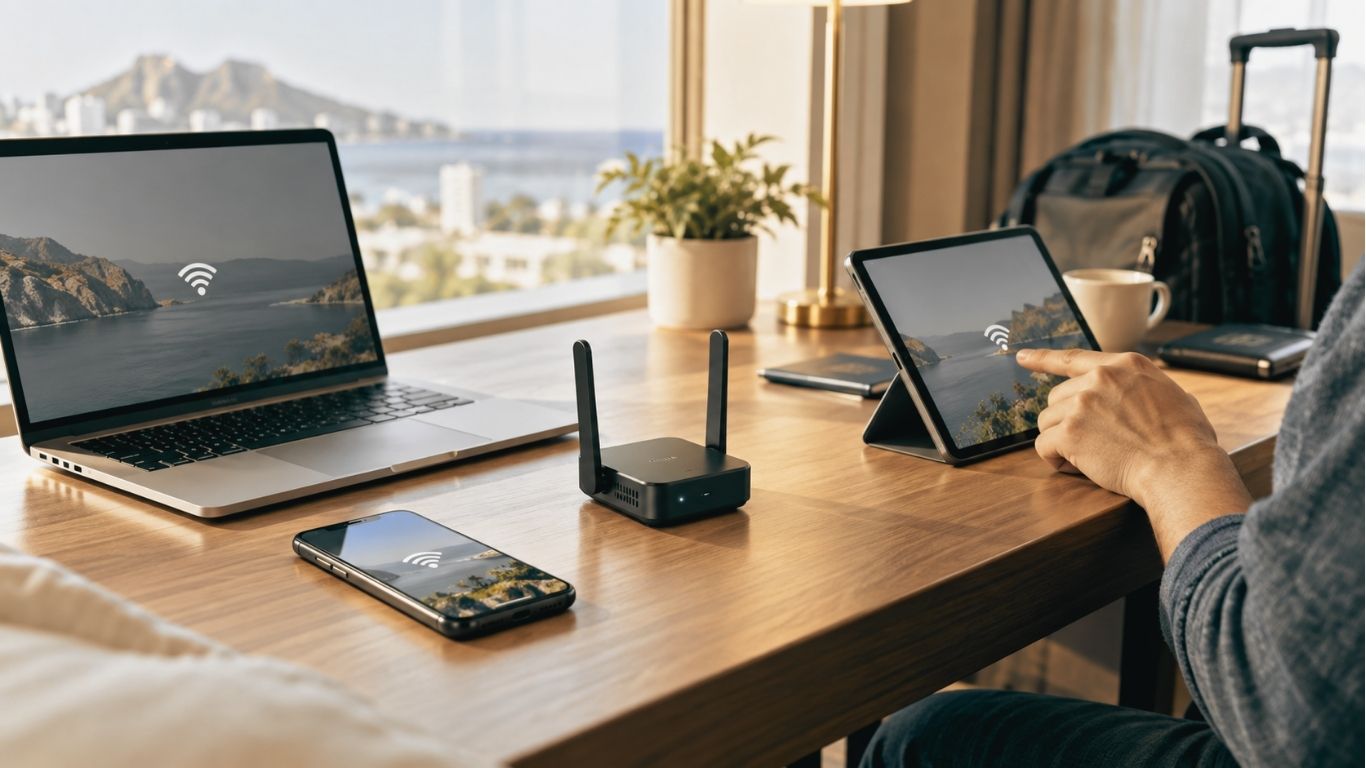
Now connect the rest of your devices to the travel router.
This might include:
- Smartphone
- Laptop
- Tablet
- Smartwatch
- Streaming stick
- Gaming device
- E-reader
- Smart speaker
Once these devices remember the network, future hotel setups can become much easier.
You may only need to connect the router to the new hotel network while your personal devices continue using the same WiFi credentials.
Step 10: Test the Connection
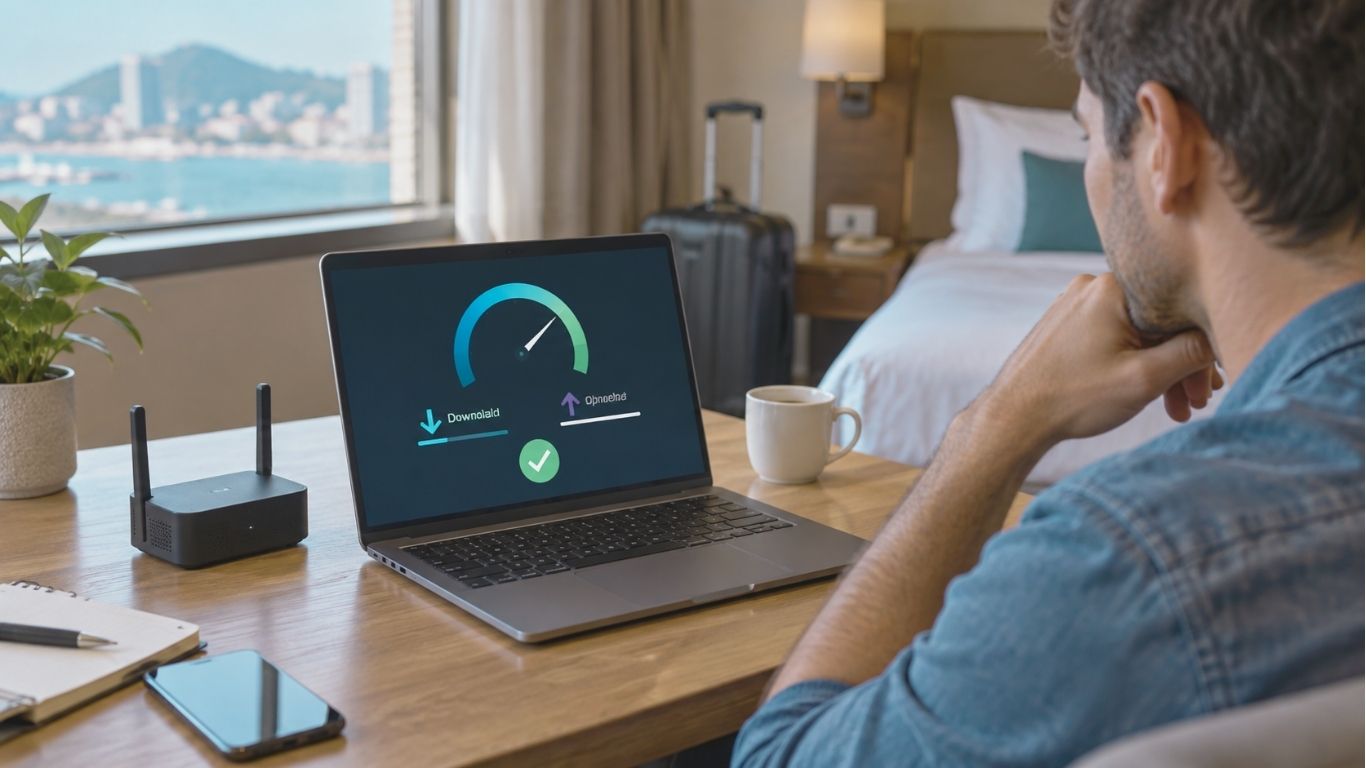
Open a few websites or apps to make sure the internet is working properly.
You can also run a speed test.
Check:
- Download speed
- Upload speed
- Latency
- Connection stability
Do not expect a travel router to make slow hotel internet suddenly fast.
In some cases, speeds may drop slightly because the router is receiving and rebroadcasting the connection.
The main advantages are convenience, easier device management, and better control over your network.
How to Connect a Travel Router Using Internet
If your hotel room includes an internet port, a wired setup may provide a more stable connection.
Connect one end of an internet cable to the wall port and the other end to the WAN or internet port on the travel router.
Open the router settings and choose internet or wired internet as the connection source.
Many routers can detect the connection automatically.
Your devices can still use WiFi through the travel router even though the internet source is wired.
This setup can be helpful if the hotel’s wireless signal is weak.
How to Use a Travel Router With Hotel WiFi
The basic process is simple:
- Turn on the router.
- Connect your phone or laptop to it.
- Open the router control panel.
- Scan for hotel WiFi.
- Connect to the hotel network.
- Complete the hotel login page if required.
- Connect your other devices to the travel router.
Once this is complete, the travel router acts as the main connection point between your devices and the hotel network.
GL.iNet GL-AXT1800 Slate AX Pocket-Sized Wi-Fi 6 Travel Router with VPN Review
Best Security Settings for a Travel Router
Convenience is important, but security matters too.
Here are a few settings worth checking.
Change the Admin Password
Never leave the default administrator password unchanged if your router allows you to update it.
A unique admin password helps prevent unauthorized access to your router settings.
Use WPA2 or WPA3
Choose WPA2 or WPA3 security if your router supports them.
Avoid unsecured or outdated WiFi security options.
Update the Firmware
Router manufacturers sometimes release updates to improve performance, fix bugs, and address security issues.
Check for updates before a trip, especially if you have not used the router for a while.
Disable Features You Do Not Use
Some travel routers include features such as file sharing or remote management.
If you do not need them, consider turning them off.
Keeping the setup simple can also reduce unnecessary exposure.
Consider a VPN
Some travel routers support VPN connections directly.
A VPN may add another layer of privacy on public networks.
However, performance depends on the router, the VPN provider, and the speed of the underlying connection.
Common Travel Router Problems and Fixes
Even a simple setup can occasionally go wrong.
Here are some common problems and possible solutions.
The Router Cannot Find Hotel WiFi
Move the router to a different location and scan again.
Try placing it closer to the hotel access point.
You can also switch between 2.4GHz and 5GHz if your router supports both.
Some older hotel networks may only support 2.4GHz.
Connected but No Internet
The router may be connected to hotel WiFi but still need a captive portal login.
Open a browser and try loading a website.
If the hotel login page appears, complete the required steps.
The Hotel Login Page Does Not Appear
Temporarily turn off mobile data on your phone.
Reconnect to the travel router and try opening a browser again.
Restarting the router may also help.
Internet Speed Is Slow
Try moving the router to a more open area.
Avoid placing it behind a television, inside a cabinet, or next to large metal objects.
You can also compare 2.4GHz and 5GHz performance.
The Router Keeps Disconnecting
Restart the router and check whether the hotel WiFi itself is unstable.
Also make sure the router is receiving enough power.
Some USB ports do not provide enough power for certain devices.
Useful Travel Router Tips for Beginners
A little preparation can save you a lot of time during a trip.
Before leaving home:
- Set up the router
- Choose your WiFi name and password
- Update the firmware
- Save your admin password securely
- Pack the correct charging cable
- Carry a short internet cable
- Test the router with your usual devices
Doing this before you travel means you are less likely to spend time troubleshooting after you arrive.
Is a Travel Router Safe on Public WiFi?
A travel router can improve how your devices connect to public WiFi, but it does not make an unsafe network completely secure.
Your devices communicate with the travel router through your private network, but the router still uses the hotel’s internet connection.
For better security:
- Keep your devices updated
- Use secure websites
- Enable WPA2 or WPA3
- Avoid suspicious networks
- Consider using a reputable VPN
Be especially careful when entering sensitive information on unfamiliar public networks.
Travel Router vs Mobile Hotspot
A travel router and a mobile hotspot solve different problems.
A mobile hotspot normally uses cellular data from a smartphone or dedicated hotspot device.
A travel router usually takes an existing internet connection, such as hotel WiFi or internet, and shares it with your devices.
A mobile hotspot can be useful when there is no WiFi available.
A travel router is useful when internet is already available but you want one private network for several devices.
Some travelers use both depending on the situation.
Frequently Asked Questions
Can I use a travel router in a hotel?
Yes. Many travel routers are designed to work with hotel WiFi or internet connections.
However, setup can vary depending on the hotel’s network rules.
Do travel routers work with hotel WiFi?
In many cases, yes.
The router connects to the hotel network and then creates a separate WiFi network for your devices.
You may still need to complete a captive portal login.
Can I connect multiple devices to a travel router?
Yes.
The exact number depends on the router model and the available bandwidth.
Do I need an internet cable?
No.
Most travel routers can connect wirelessly to hotel WiFi.
An internet cable is simply useful when a wired connection is available.
Can I use a VPN with a travel router?
Many modern travel routers support VPN connections.
The available protocols and setup options vary by model.
Will a travel router make hotel WiFi faster?
Usually not.
A travel router does not increase the speed provided by the hotel.
Its main advantages are convenience, device management, and additional network control.
Final Thoughts
Learning how to set up a travel router for beginners is not as difficult as it may seem.
The process usually comes down to a few simple steps: turn on the router, connect your phone or laptop, open the admin page, connect the router to hotel WiFi or internet, complete any required login, and then connect your personal devices.
For the best experience, change the default passwords, use modern WiFi security, keep the firmware updated, and test the router before your trip.
A travel router will not solve every internet problem, but for people who travel with multiple devices, it can make connecting to hotel and public WiFi much easier.