How to Choose a Portable Monitor for Travel: Buying Guide 2026
Choosing a portable monitor for travel? This 2026 guide helps you check laptop compatibility, screen size, weight, brightness, power needs, and stand design before you buy.
Working on a laptop while traveling often means switching between windows all day. You read a document, open your notes, return to an email, and then try to find the document again. A portable monitor gives you more room to work without adding a full-size display to your luggage.
Still, a second screen is only helpful when it works with your laptop and fits your routine. A monitor that needs two cables, a separate charger, and a wide desk may be perfectly fine at home but frustrating on a short trip.
So, how do you choose a portable monitor for travel? Begin with the places you work and the laptop you already own. Then consider screen size, weight, power, visibility, and the stand. This guide will help you make those choices in an order that makes sense.
Table of Contents
ToggleThink About Your Travel Routine Before Shopping
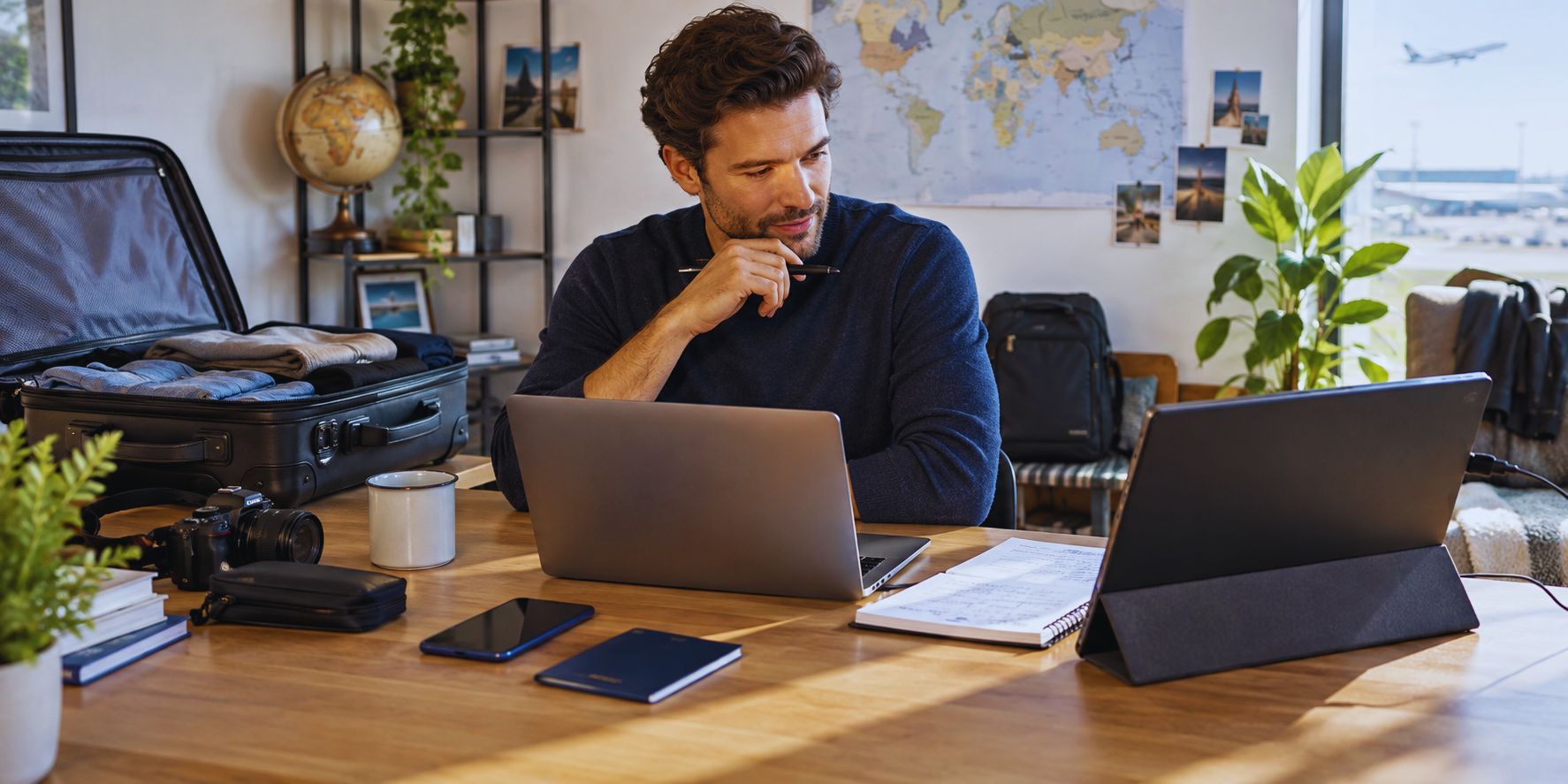
Imagine your most common workday away from home. Are you setting up at the same hotel desk for a week? Moving between cafés? Working from a small table in a shared space?
For a longer stay, you might appreciate a larger screen and a stand with more adjustment. If you change locations every day, quick setup and a lighter bag may matter more.
Your work also makes a difference. Someone who keeps research notes beside a document needs a different screen from someone reviewing detailed photographs. You do not need to pay for features you rarely use.
Before browsing products, write down where you will use the monitor, what you will display on it, and how much extra equipment you are willing to carry. Those answers will make the specifications easier to judge.
Best Touchscreen Portable Monitor Under $200
Confirm That It Will Work With Your Laptop
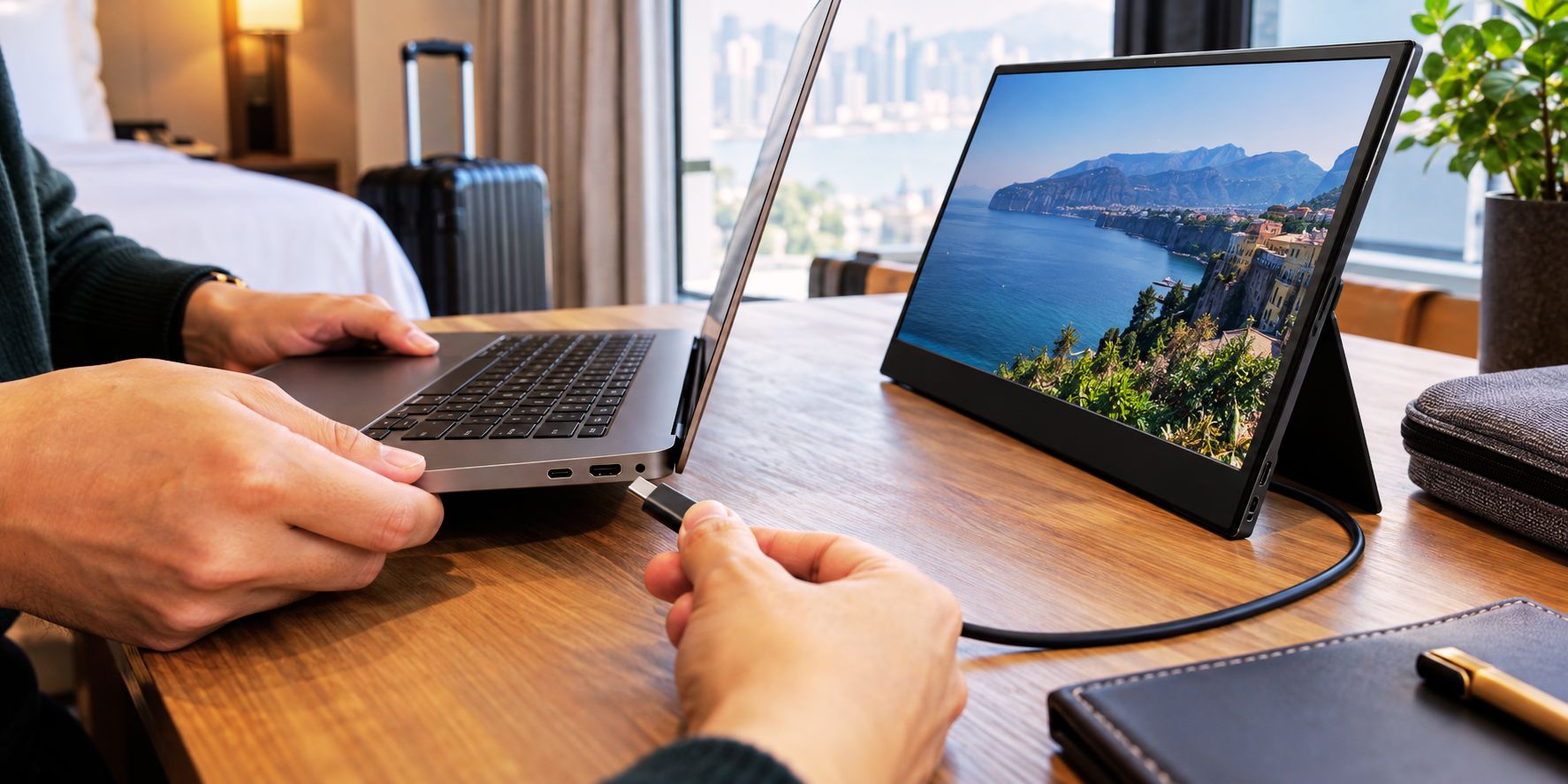
Check compatibility before comparing picture quality. The best-looking portable monitor is a poor purchase if your laptop cannot send video to it.
Many travel monitors use USB-C. On a compatible setup, a single cable can carry the picture and provide power. But a USB-C port does not automatically support an external display. Your laptop must support video output through that port, such as DisplayPort Alt Mode or a compatible Thunderbolt or USB4 connection. Dell’s guide to DisplayPort over USB-C explains the connection in more detail.
Find your laptop’s exact model number and check its official specifications. Look for wording that confirms external display support through USB-C. Then compare those details with the monitor’s connection requirements.
If your laptop has HDMI output, a monitor with HDMI input may be a good fit. Keep in mind that HDMI normally carries the video signal; the monitor may still need a separate USB cable for power. Check the product manual so you know what the complete setup requires.
Finally, look at the cables included in the box. Not every USB-C cable is suitable for carrying a display signal. Knowing which cable you need before your first trip can save a great deal of frustration.
Best Laptop for Online Jobs in USA
Find a Screen Size That Fits Your Bag and Desk
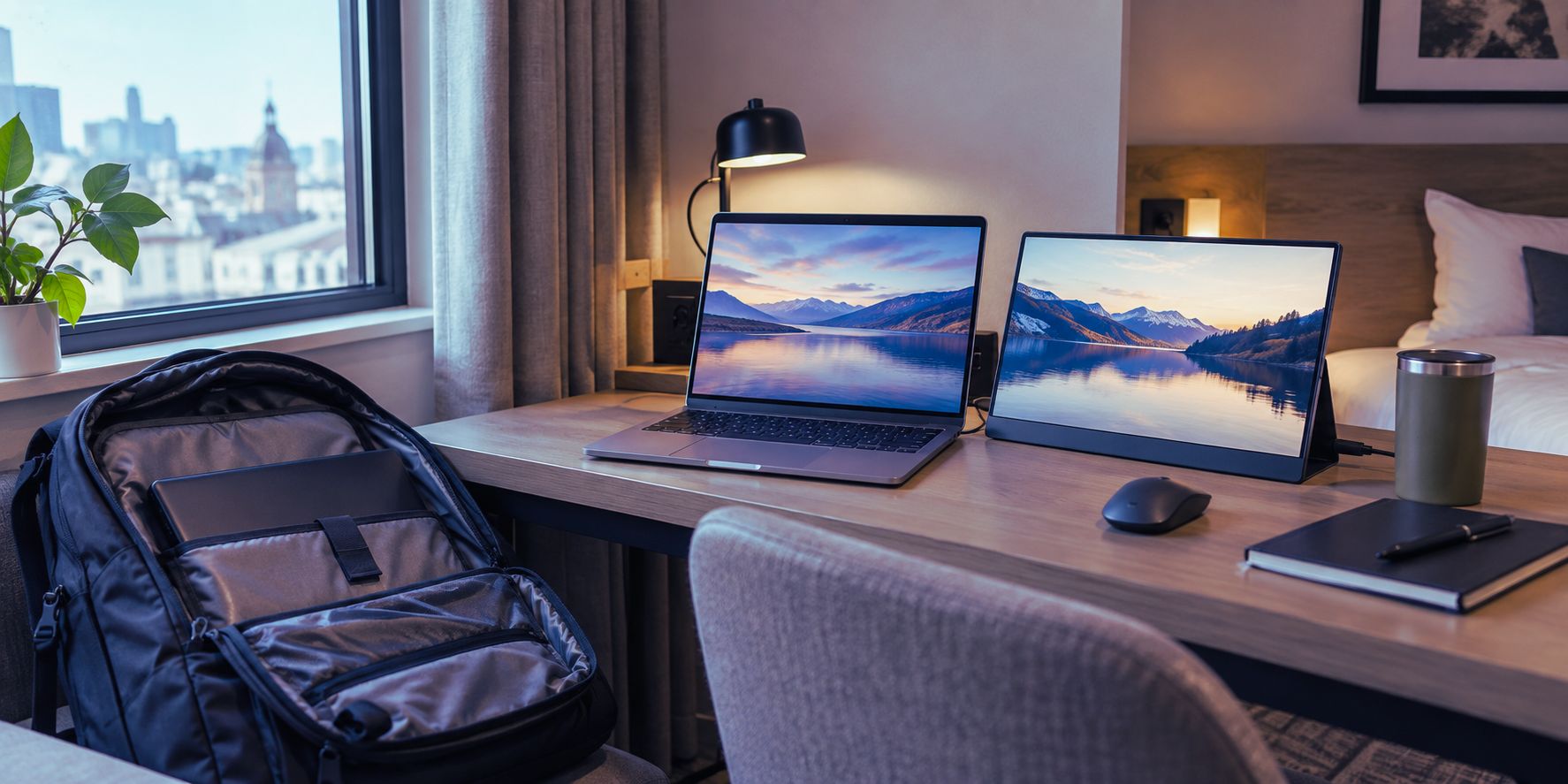
A bigger display gives you more working room, but you also have to pack it and find space for it beside your laptop.
A monitor around 14 inches can be a comfortable choice when you travel light or regularly use small tables. A 15.6- or 16-inch display provides more space for spreadsheets, reference material, and side-by-side windows. That extra space may be valuable if you spend several hours at a desk each day.
Do not decide by diagonal screen size alone. Check the product’s full width and height, including its frame. Compare those measurements with your bag’s laptop compartment or the sleeve you plan to use.
It helps to think about your workspace, too. Place your laptop on a typical desk or table and picture where the second display would go. A screen that fits in your backpack may still feel crowded once you set it up.
You may also see both 16:9 and 16:10 displays. A 16:10 screen gives you a little more vertical space, which can be pleasant for documents and web pages. Choose according to the tasks you do most often rather than treating either shape as a requirement.
Count the Weight of the Complete Setup
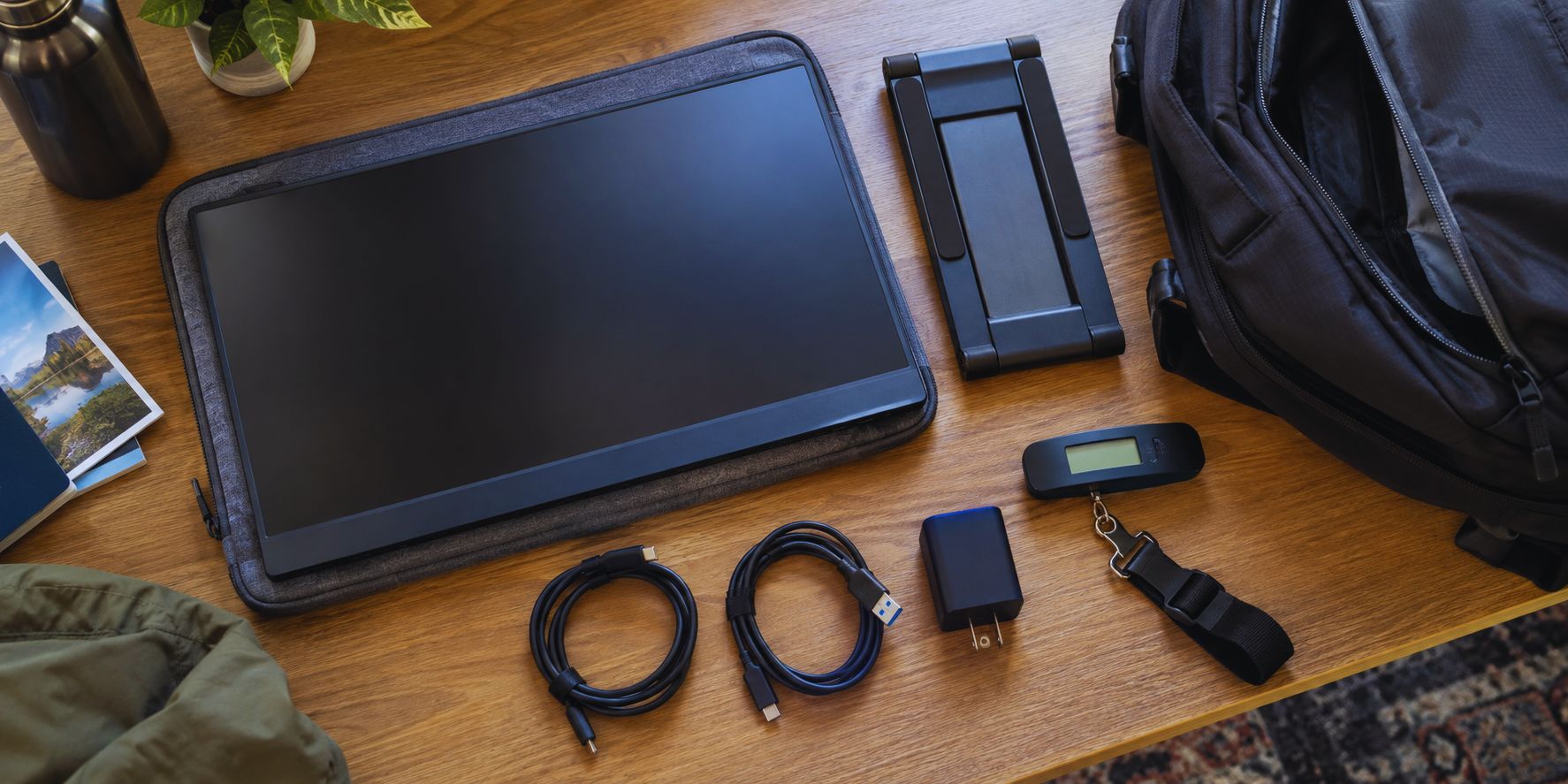
A product listing may describe a monitor as lightweight, but that number may refer to the screen by itself.
For travel, add the weight and space taken by its cover, stand, cables, adapter, and power supply. If you need a separate charger every time you use the monitor, that charger is part of the travel setup.
Consider how you carry your bag. A small weight difference may barely matter on a drive to a hotel, but it can become noticeable when you walk through stations or carry your bag all day.
Protection matters as much as weight. A slim display should not be pressed against a charger, water bottle, or other hard object in your backpack. Check whether the included cover protects the screen while packed. If it does not, factor in the cost and space of a protective sleeve.
When two monitors seem similar, compare what you would actually pack for each one. The easier setup is often the one you will use more regularly.
10 Best Smart Home Devices That Save Money in 2026
Choose Resolution for the Work You Do
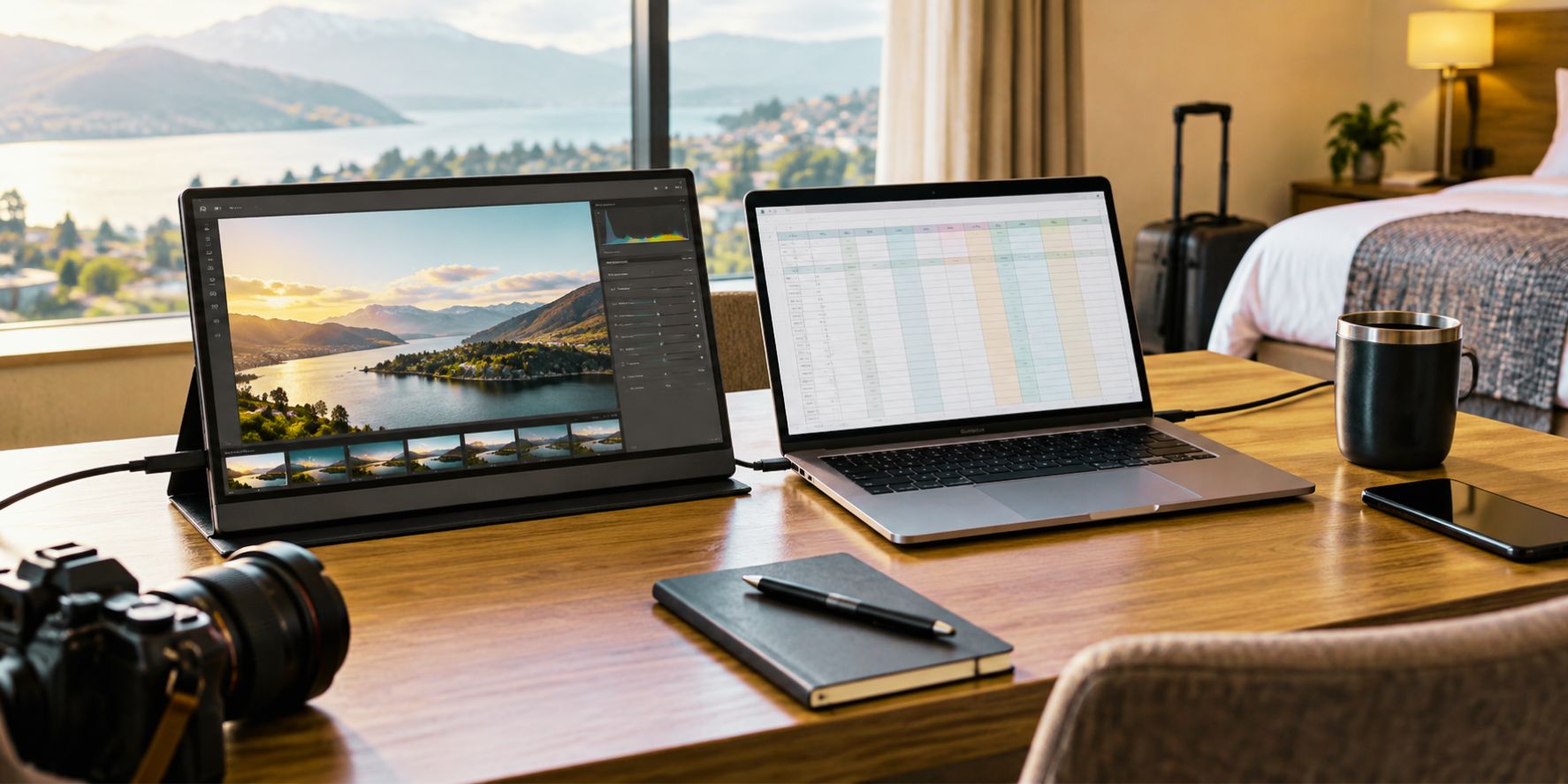
Higher resolution can make text and images look sharper. That does not mean every traveler needs the highest-resolution portable monitor available.
For email, documents, browsing, and video calls, a Full HD screen can be a sensible starting point. If you work with detailed graphics or spend long hours reading small text, a higher-resolution model may be worth considering.
Remember that a sharp screen is only useful if you can read it comfortably. On a small high-resolution display, you may need to increase the operating system’s display scaling so that menus and text are not too tiny.
Screen quality includes more than resolution. If possible, read independent reviews that discuss how clear text looks at a normal viewing distance. Also consider viewing angles if another person may look at the display during a meeting.
For most travel work, a dependable screen that is pleasant to read will provide more value than an impressive resolution number you rarely notice.
Consider Brightness and Reflections

Think about the light in the places where you work. A monitor that looks clear in a hotel room may be harder to see beside a bright café window.
Manufacturers describe brightness in nits. Use that figure as a comparison point, then check reviews for comments about real-world visibility. A bright specification alone cannot tell you exactly how comfortable the screen will feel in every room.
The screen finish also affects your experience. A glossy display may show stronger reflections from windows or overhead lights. A matte finish can reduce distracting reflections, though personal preference still matters.
If you mostly work indoors, focus on a screen that remains comfortable under ordinary room lighting. If you often sit near windows, give brightness and glare more attention. Do not count on a portable monitor being easy to use in direct sunlight unless trustworthy testing supports that expectation.
Best Budget Laptop for College Students Under $800 in USA
Plan Where the Power Will Come From
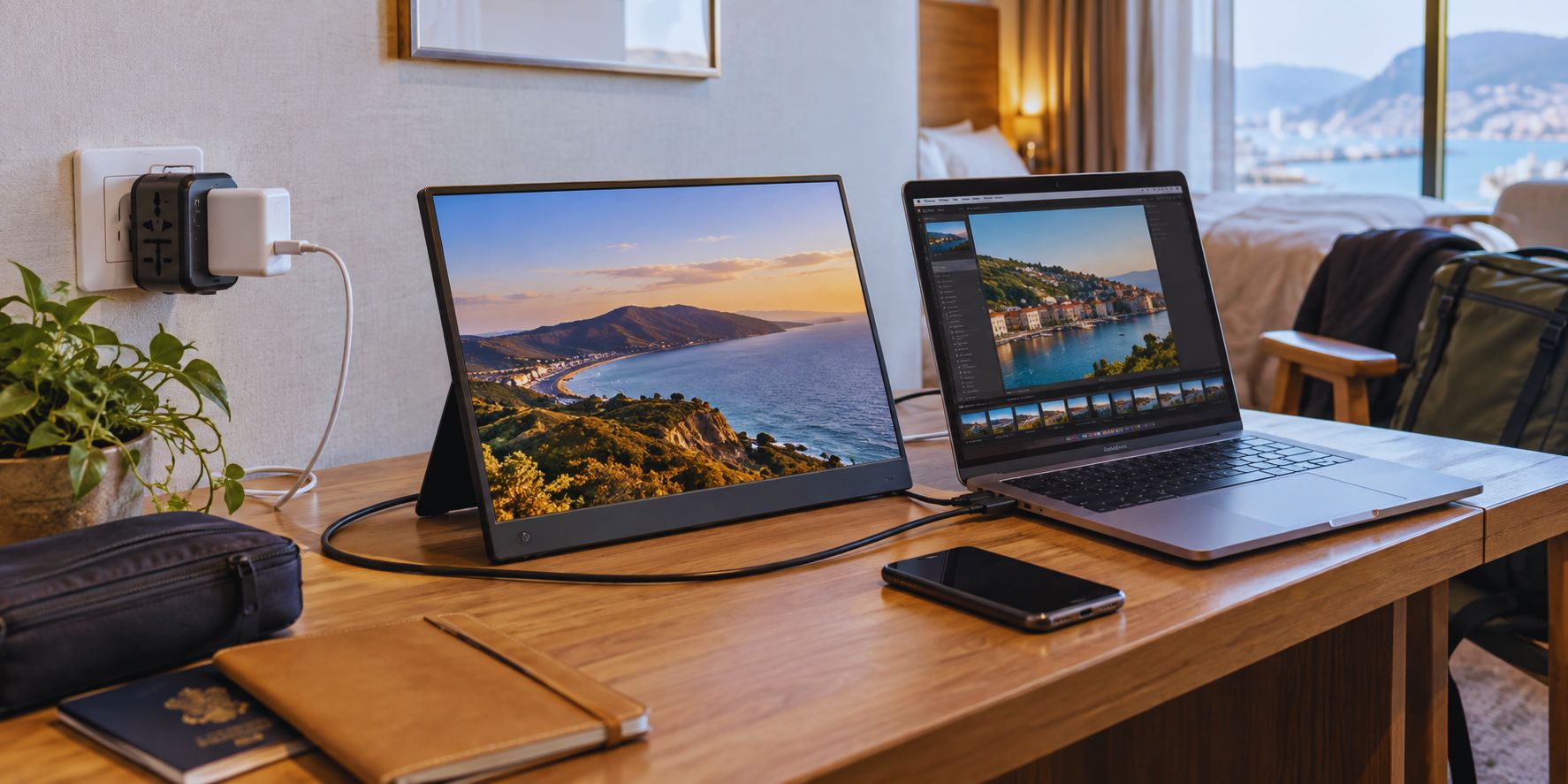
A portable monitor needs power, even when its setup looks wonderfully simple in a product photo.
Some models can draw enough power from a compatible laptop through the same USB-C cable used for video. This keeps the desk tidy, but it also uses the laptop’s battery. If you frequently work away from an outlet, think about how that will affect your working time.
Other monitors require a separate USB power connection. If you use HDMI for video, you may need one cable from the laptop for the picture and another connection for power. A compatible wall charger or power bank may be useful, depending on the monitor’s stated requirements.
Some models advertise power pass-through, which may allow a charger to supply the monitor and send power onward to the laptop. Check the specific power ratings before relying on that feature; the amount delivered to the laptop varies by model.
Picture a normal work session before buying. Can you plug in the laptop? Is there a second outlet? Would you need to carry another charger? A clear answer here is more valuable than a vague promise of “one-cable convenience.”
MacBook Air 15-Inch M5 24GB/1TB Review 2026: Worth It?
Do Not Overlook the Stand
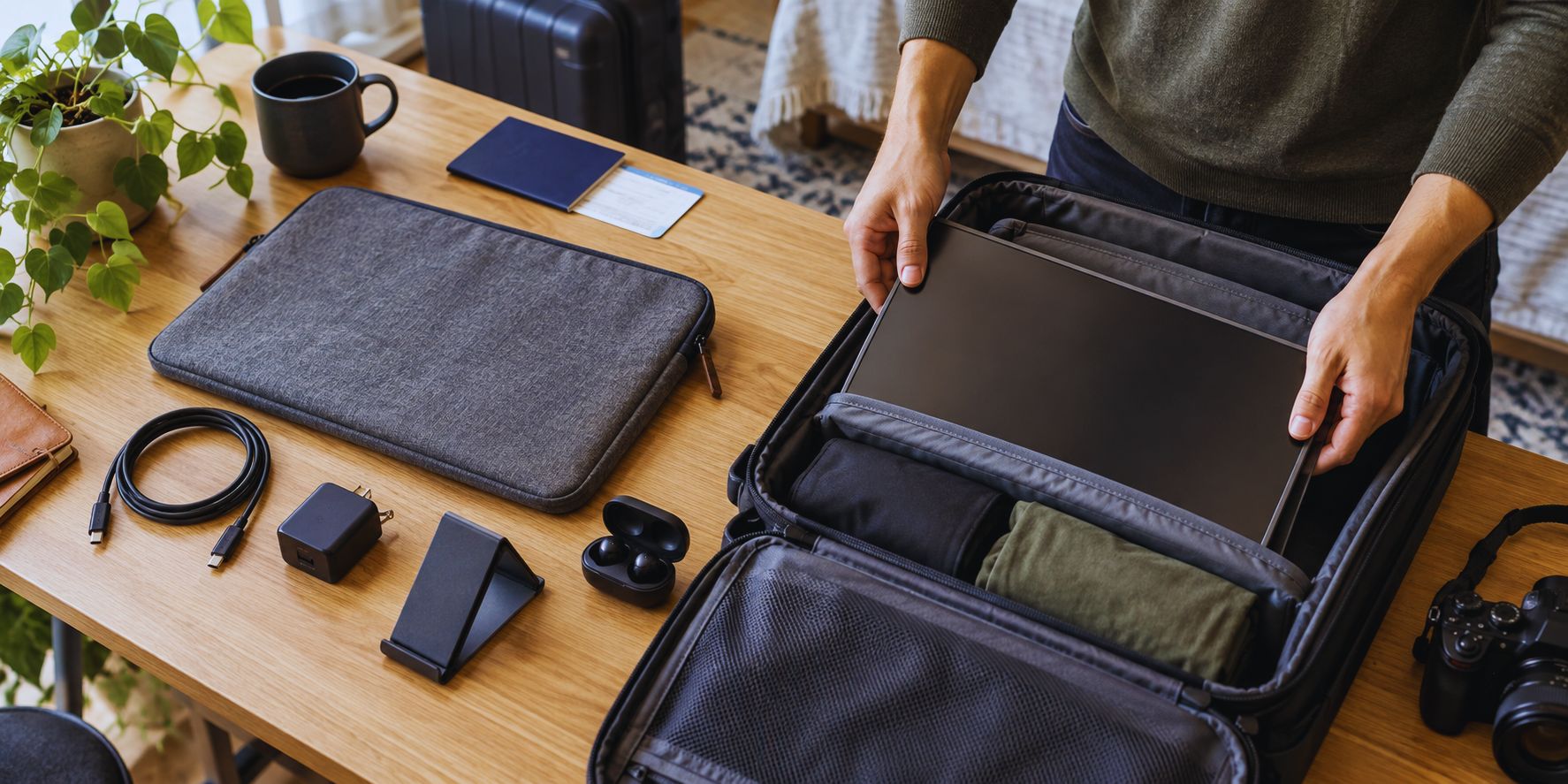
You will set up the stand every time you use the monitor, often on a desk you have never seen before. Its design deserves a close look.
A folding cover can protect the screen and double as a stand, saving space in your bag. The drawback is that it may offer limited viewing angles. A built-in kickstand can be quick to open, while a separate stand may offer more flexibility at the cost of extra bulk.
Look for reviews that mention stability. A display that shifts when you connect a cable or lightly move the table can become irritating during a full workday.
If you plan to use the monitor in portrait orientation, check its physical support as well as its software features. A screen may be able to rotate its picture without having a stand that safely holds it upright.
Think about your sitting position, too. A comfortable angle can matter more than a stylish design when you are working for several hours.
Decide Which Extras You Will Actually Use
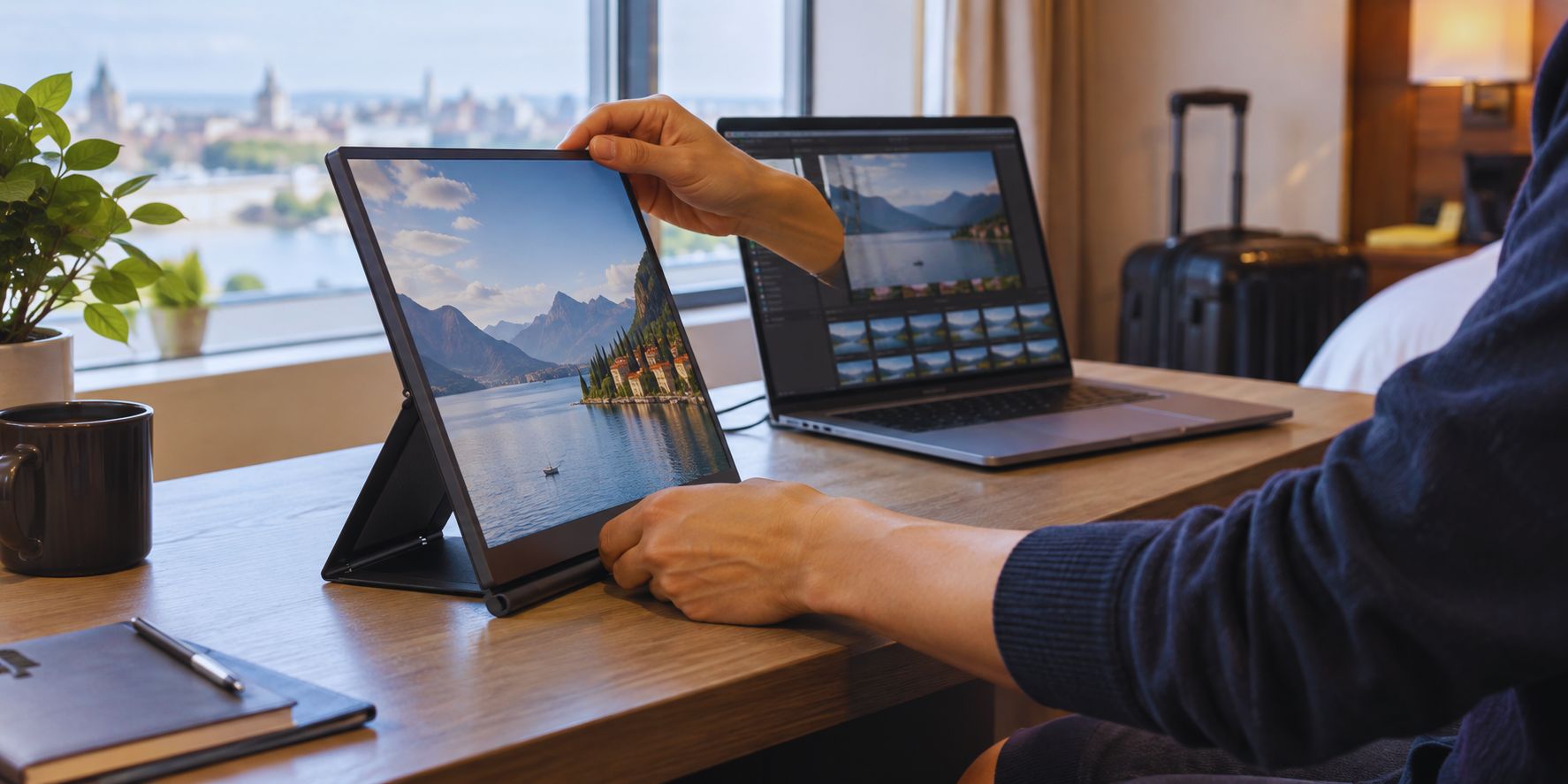
Portable monitors may include touch controls, speakers, built-in batteries, or faster refresh rates. Each can be useful for the right person.
Touch input may help with presentations or particular creative tasks. Check how it works with your operating system before paying extra for it. Built-in speakers can be handy, although you may already prefer headphones or your laptop’s audio.
A faster refresh rate is more relevant if you plan to play games. For writing, spreadsheets, and research, it is less likely to shape your everyday experience.
A built-in battery offers another way to use the monitor away from an outlet, but it is also another device to charge and carry. Decide whether that convenience matches your routine.
If an extra feature will rarely leave its settings menu, your budget may be better spent on a sturdy stand, better protection, or a screen that is easier to read.
Read Reviews With Travel in Mind
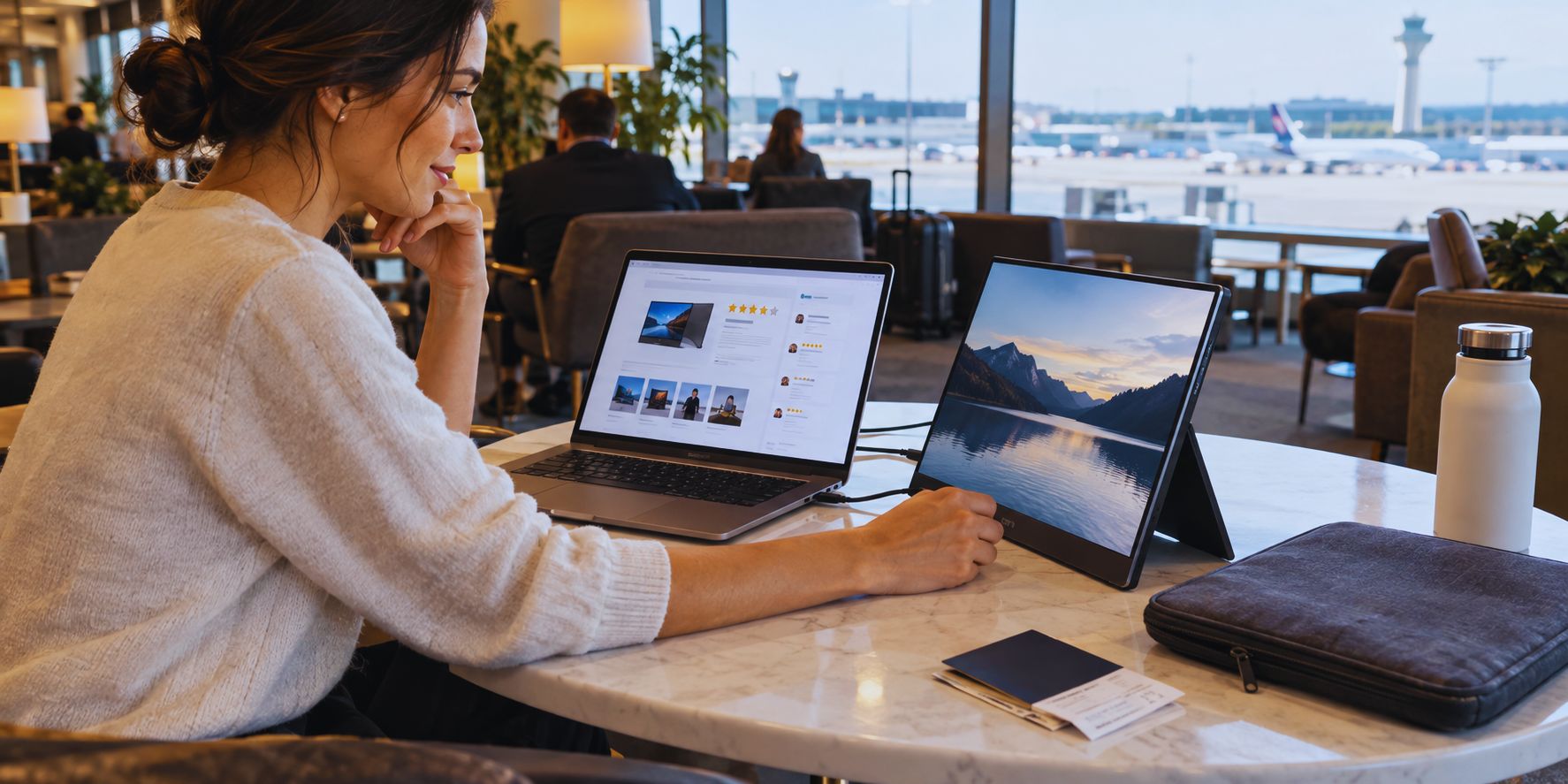
A specification sheet can tell you the monitor’s dimensions and ports. Reviews can help you discover whether using it is pleasant.
Look for feedback from people with a laptop similar to yours. Pay attention to reports of connection problems, power warnings, unstable stands, or a screen that is difficult to see in bright rooms. A review that describes how the monitor packs and sets up may be especially useful for travel.
Check the box contents before you order. Does it include the USB-C or HDMI cable you need? Is there a cover? Will you have to buy a separate adapter?
Also read the return policy. Test the monitor with your own laptop as soon as it arrives. Connect it the way you intend to use it on a trip, adjust the display settings, and confirm that its power setup works as expected.
Best Budget Laptop for College Students Under $800 in USA
Portable Monitor Buying Checklist
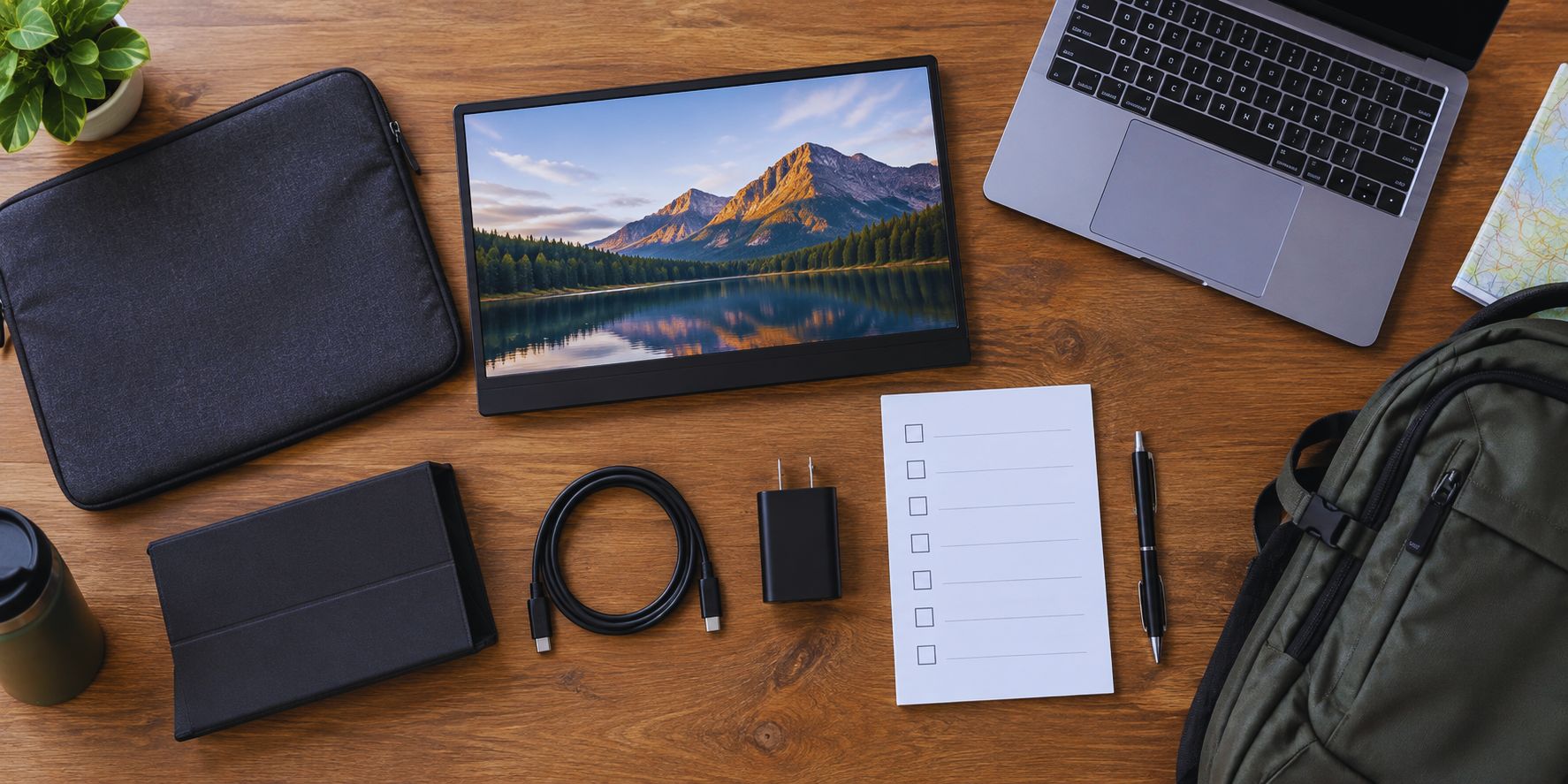
Before you buy, make sure you can answer these questions:
- Does my laptop support the monitor’s video connection?
- Will the monitor need a separate power source?
- Do its full dimensions fit my bag?
- Can I carry the monitor, stand, cover, and cables comfortably?
- Is the screen large enough for my work and small enough for my usual desk?
- Will its brightness and screen finish suit my work locations?
- Does the stand hold the display at a comfortable angle?
- Are the cables I need included?
If you cannot answer the first two questions from the listing, check the manufacturer’s manual before ordering.
Frequently Asked Questions
Can I connect a portable monitor to any USB-C laptop?
No. The laptop’s USB-C port needs to support a compatible video output, and the monitor needs to accept it. Check the specifications for your exact laptop model rather than relying on the shape of the port.
Can a portable monitor run without a wall outlet?
Some can draw power from a laptop, a suitable power bank, or a built-in battery. This depends on the model. If the monitor draws power from your laptop, expect that to affect laptop battery life.
Is a 14-inch or 16-inch monitor better for travel?
A 14-inch screen may suit frequent moves and smaller bags. A 16-inch screen offers more room if you spend longer periods at a desk. Measure your bag and consider your usual table space before choosing.
Do I need a 4K portable monitor?
You may appreciate one for detailed visual work, but 4K is not essential for common tasks such as email, documents, and browsing. Consider readability, display scaling, power requirements, and cost along with resolution.
Final Thoughts
The right travel monitor should make work easier from the moment you take it out of your bag. Start by confirming the connection to your laptop and understanding its power needs. Then choose a size you can carry, a screen you can read comfortably, and a stand that works on the desks you are likely to use.
A portable monitor does not need every premium feature to be a good purchase. It needs to fit your work, your laptop, and the way you travel.